
Turnitin
Turnitin is Montclair State University’s plagiarism detection system. It is seamlessly integrated directly within Canvas. Turnitin is the world’s leading cloud-based software for evaluating student work. Its features include an Originality Report that determines plagiarism, Grademark for providing feedback, and peer review resources.
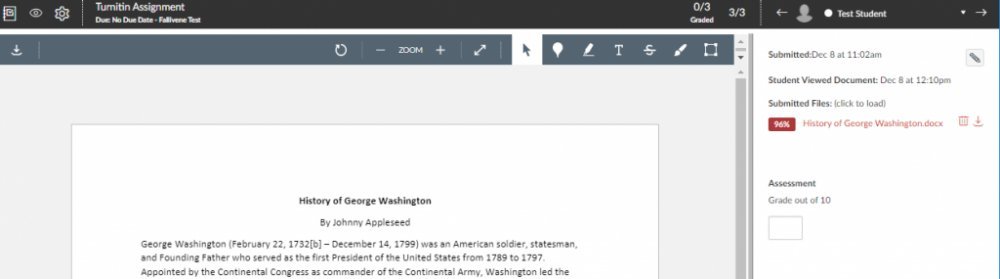
- Enabling Turnitiin in a Canvas Assignment
- ETS e-rater (Grammar Feeback)
- How Students Submit to a Turnitin Assignment
- How Instructors Access Turnitin Reports
- Students Accessing Similarity Report
Enabling Turnitin in a Canvas Assignment
- Log in to Canvas at https://montclair.instructure.com/
- Select your course
- Click Assignments in the Course Navigation menu
- Click Add assignment
- Enter the assignment title, point value, and other relevant information
- In the Submission Type menu, select Online. (Select Text Entry and/or File Upload)
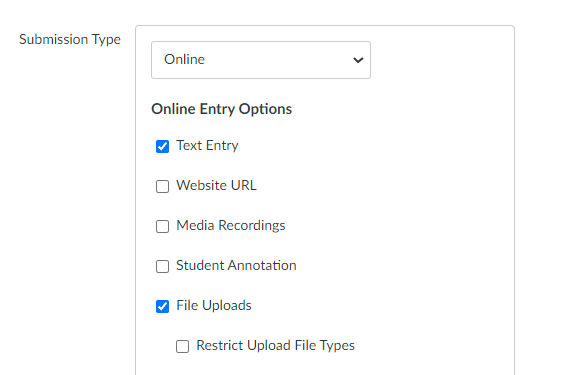
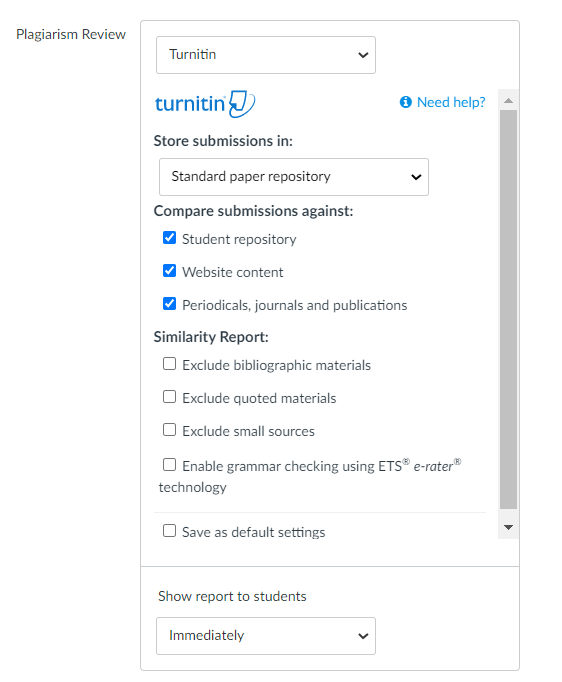
- Under Plagiarism Review, select Turnitin
- Choose your desired settings based on the Turnitin options provided. Click Save as default settings to preserve your settings for future Turnitin assignments.
NOTE: If you copy a Turnitin assignment prior to December 27, 2021, faculty will need to edit the assignment to enable the new configuration of Turnitin by following the steps above.
ETS e-rater (Grammar Feedback)
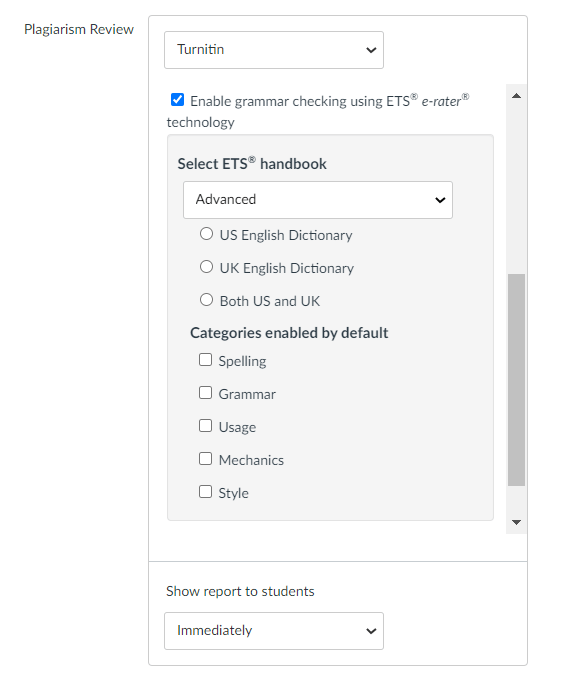
ETS e-rater is a form of grammar feedback technology that automatically checks submitted work for grammar, usage, mechanics, style and spelling errors.
- To enable, select Enable grammar checking using ETS e-rater technology
- Choose your desired settings based on the options provided
Understanding e-rater feedback, please check out this article.
How Students Submit a Turnitin Assignment
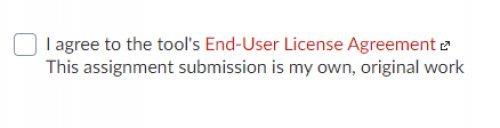
Students will follow the same assignment upload process but will be prompted with the message below. Students are required to click the checkbox before submitting.
How Instructors Access Turnitin Reports
- Click on the assignment.
- Click on "Speedgrader."
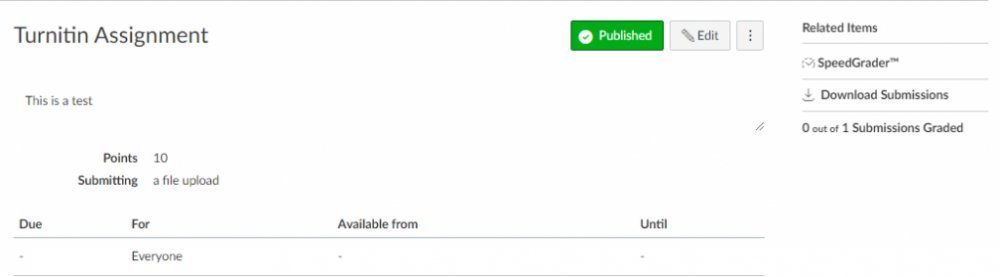
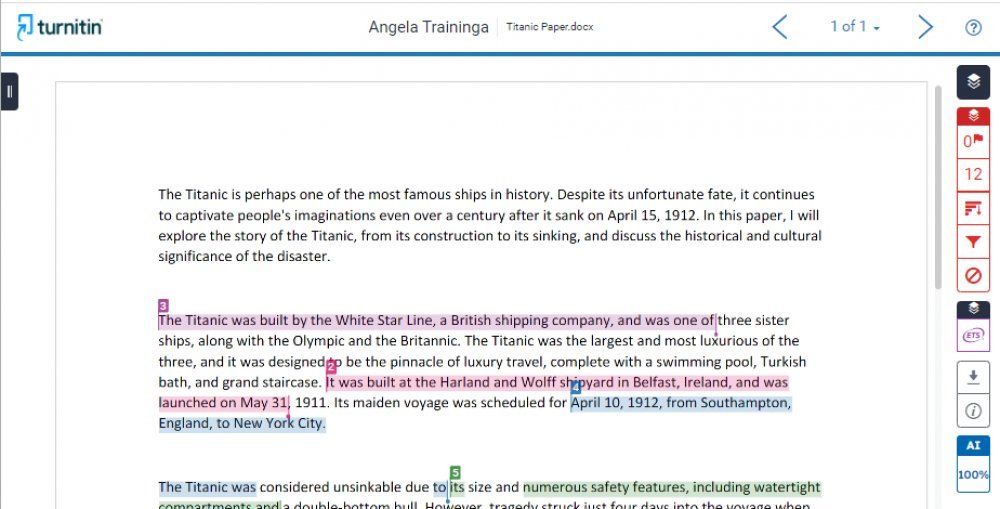
To view your Similarity Report in Turnitin, select the similarity percentage from the right-hand side of SpeedGrader.
What do the similarity score colors indicate?
The percentage range is 0% to 100% with the possible similarity groupings being:

Turnitin will open the Similarity Report in a new window.
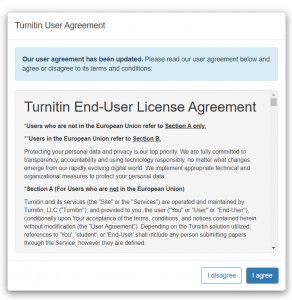
NOTE: You may be prompted to agree to the Turnitin User Agreement.
Interpreting the Similarity Score
Turnitin checks a user’s work against its extensive database. If instances are found where a user’s writing is similar to or matches against a source this will be flagged for your review in the match overview.
The database includes billions of web pages: both current and archived content from the Internet, a repository of works students have submitted to Turnitin in the past, and scholarly publications, which comprises thousands of periodicals, journals, and publications.


Similarity Layer Options
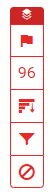
e-rater Layer Options

Other Options

Students Accessing Similarity Report
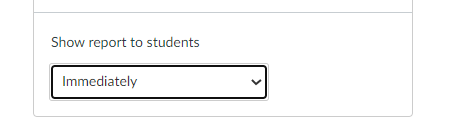
When setting up the Turnitin assignment, navigate to the option “Show report to students” and select one of the following options:
- Immediately
- After the assignment is graded
- After the due date
- Never
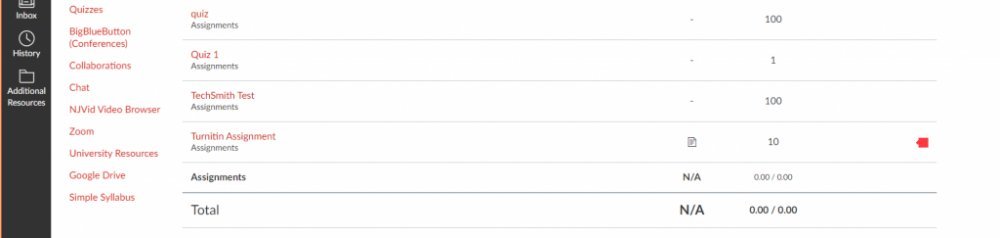
Student access the report through the Canvas gradebook by clicking on the originality report icon.
Students may be prompted to agree to the Turnitin User Agreement.
The Similarity Report will open.
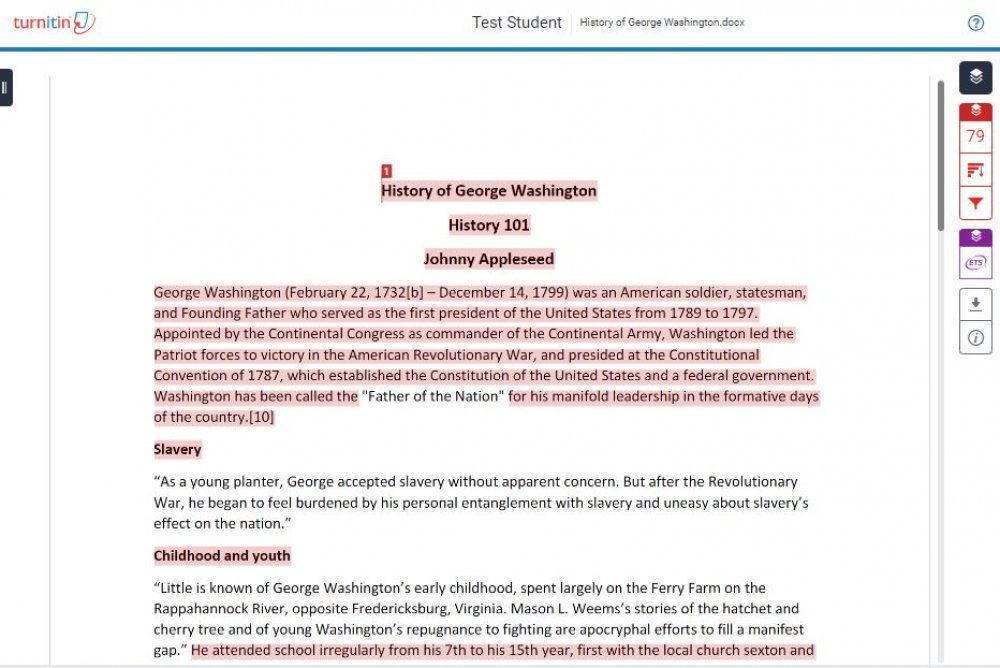
Please visit the TurnItIn website to find more details of the Similarity Report.