How to View and Manage Zoom Recordings in Panopto
All Zoom cloud recordings created in Canvas are automatically moved to Panopto Recordings. Panopto Recordings is an option available in all Canvas courses, however it may be disabled from the course navigation menu. If you do not see Panopto Recordings, check out the Canvas Guide How do I manage Course Navigation Links to learn how to enable it.
If you wish to hide your Canvas Zoom Cloud recordings from students, you have 3 options:
- Option 1: Change the permissions of the course folder to hide content from students
- Option 2: Create a new folder and move Zoom cloud recordings from the course folder into the new folder
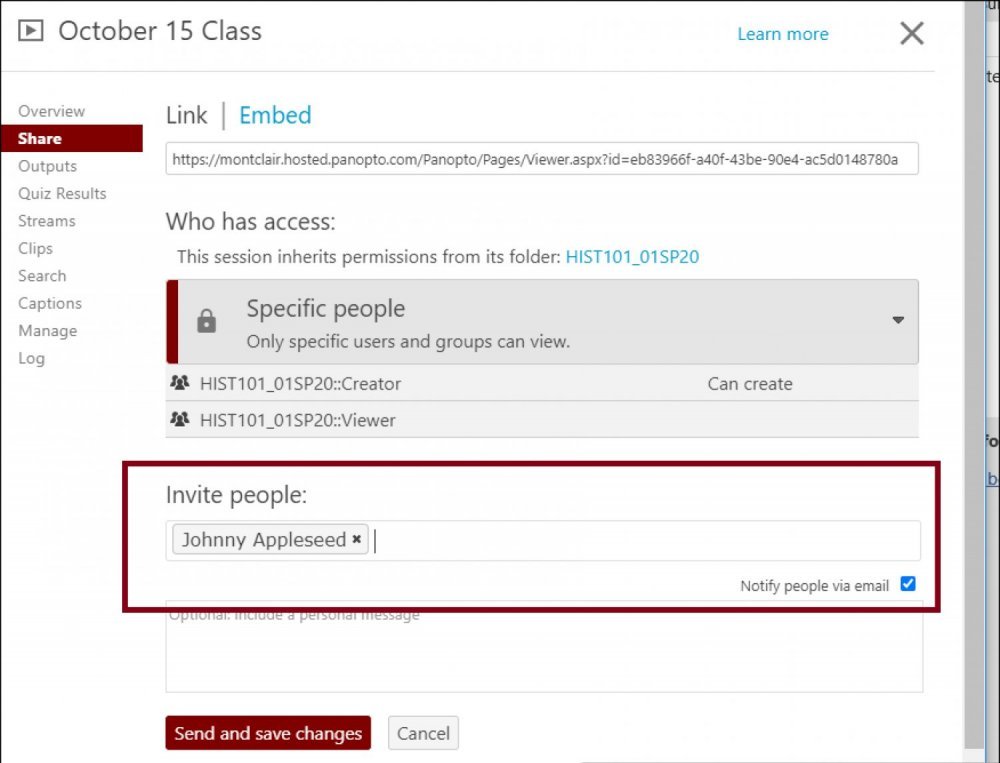
- Option 3: Share a recording in a hidden folder with a student
Option 1: Change the permissions of the course folder to hide content from students
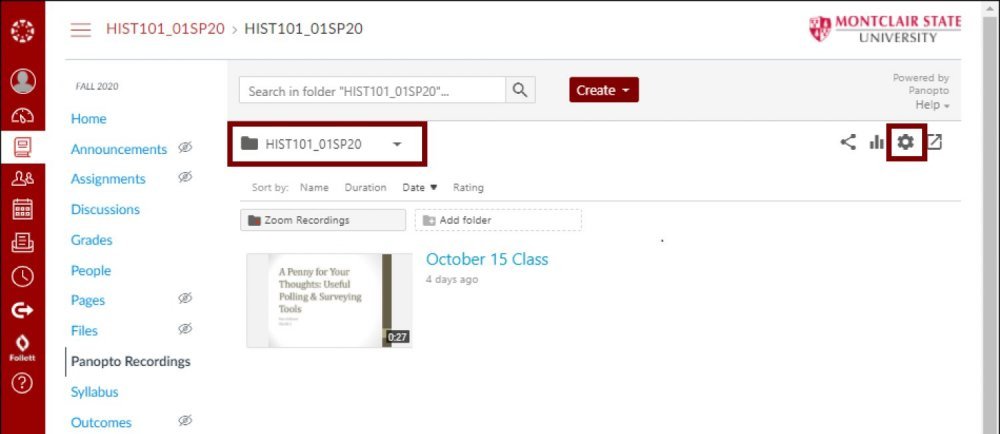
- Click on Panopto Recordings in the Canvas course menu.
- Check that the course folder is selected. If not, click the dropdown arrow to select it.
- Click on Settings in the top right corner.
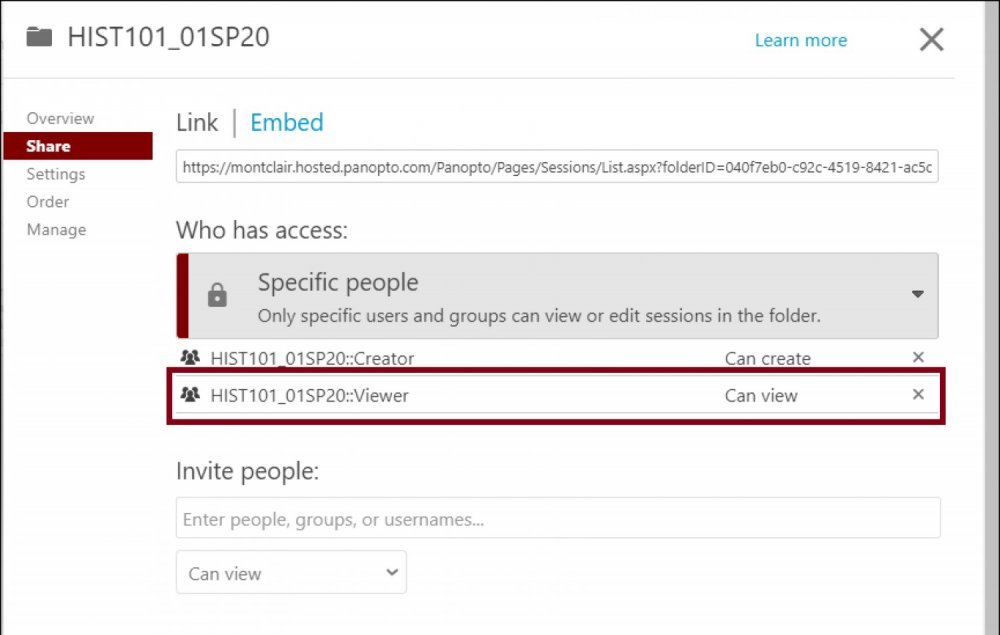
- Click on Share from the left menu.
- Under Who has access, click on the “x” next to the option “Coursename: Viewer”…. “Can view” to remove student viewing access of that course folder.
Option 2: Create a new folder and move Zoom cloud recordings from the course folder into the new folder
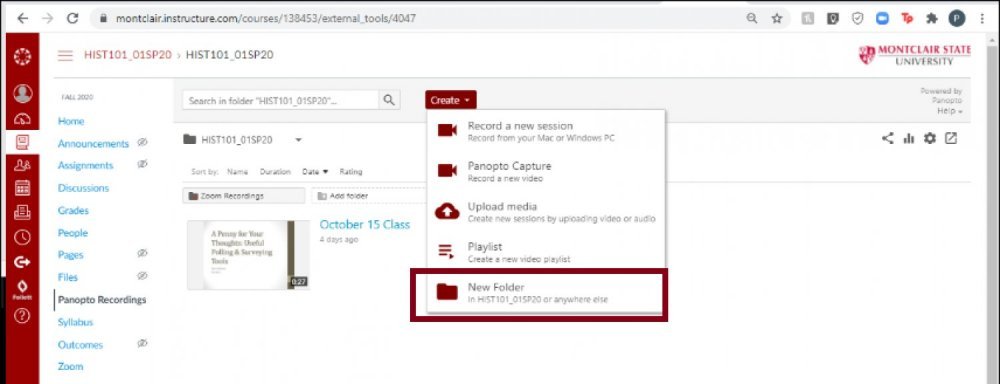
- Click on Create and click on New Folder.
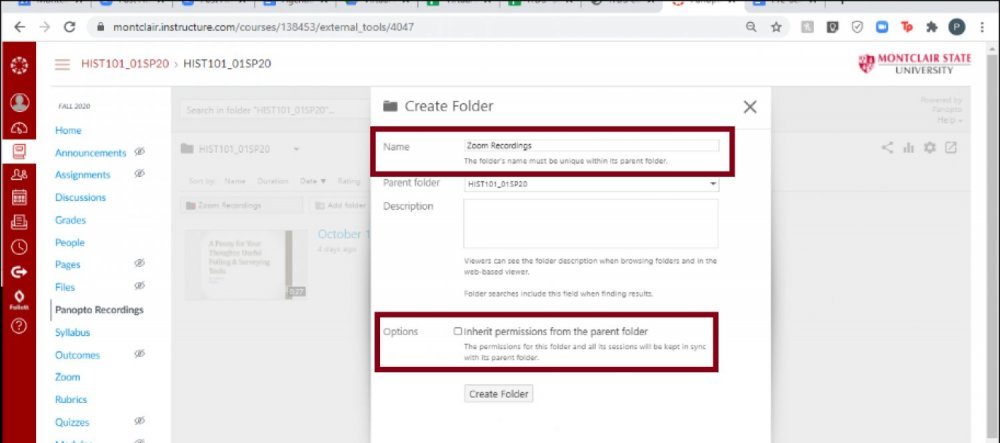
- Enter a name for the new folder.
- Deselect the option “Inherit permissions from the parent folder”.
- Click Create Folder.
- Move cloud Zoom recordings to the new folder.
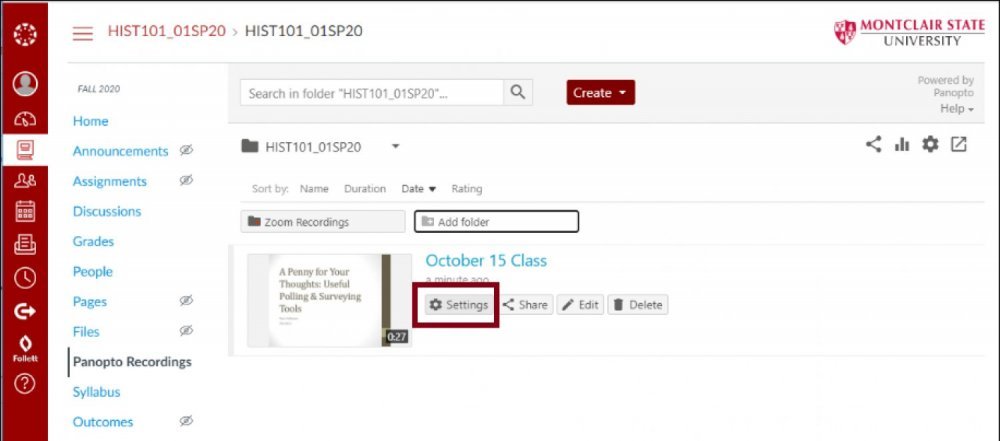
- Hover your mouse over the recording and click on Settings.
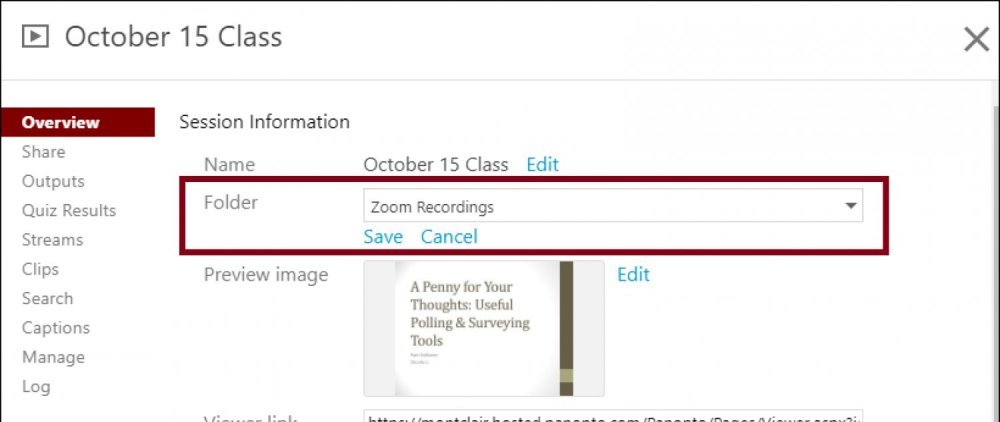
- Click Edit in the Folder section.
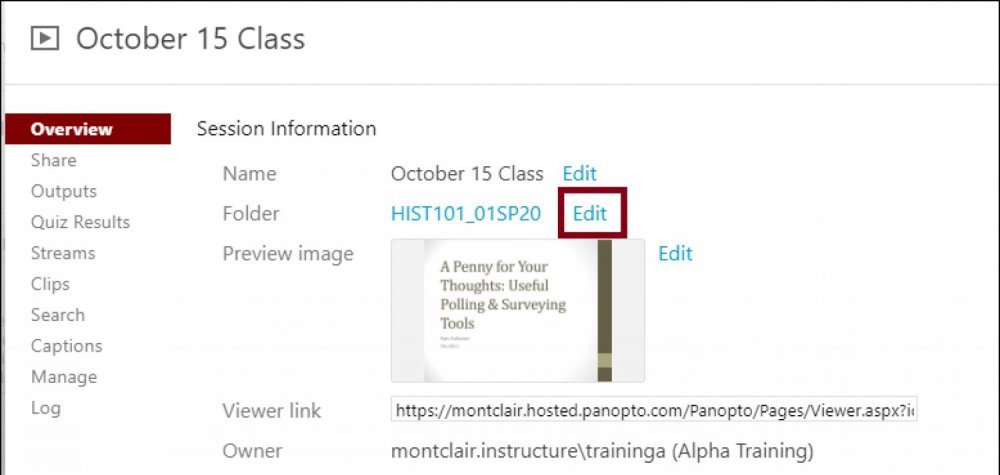
Select the new folder from the dropdown menu and click Save.