
View Panopto Recordings
The Panopto Folder Structure
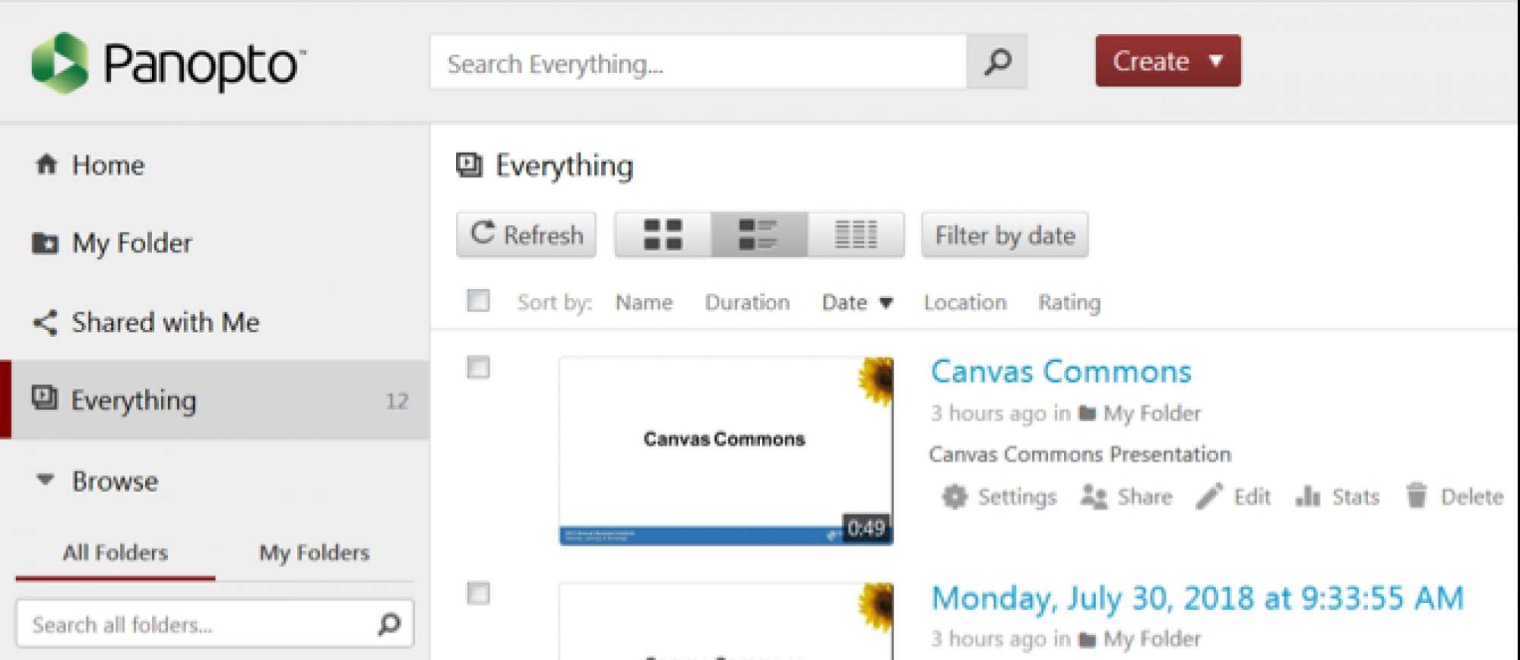
| Folder Name | Contents |
|---|---|
| Home | Shows you a curated selection of videos. You may also see the newest videos on your site. |
| My Folder | Lists all of the sessions that you recorded in your personal folder. |
| Shared with Me | Lists all sessions that were directly shared to you or one of the groups of which you are a member. |
| Everything | This view lists all of the content that you can access in Panopto. |
| Browse | Search All Folders/My Folders. |
The Panopto Player
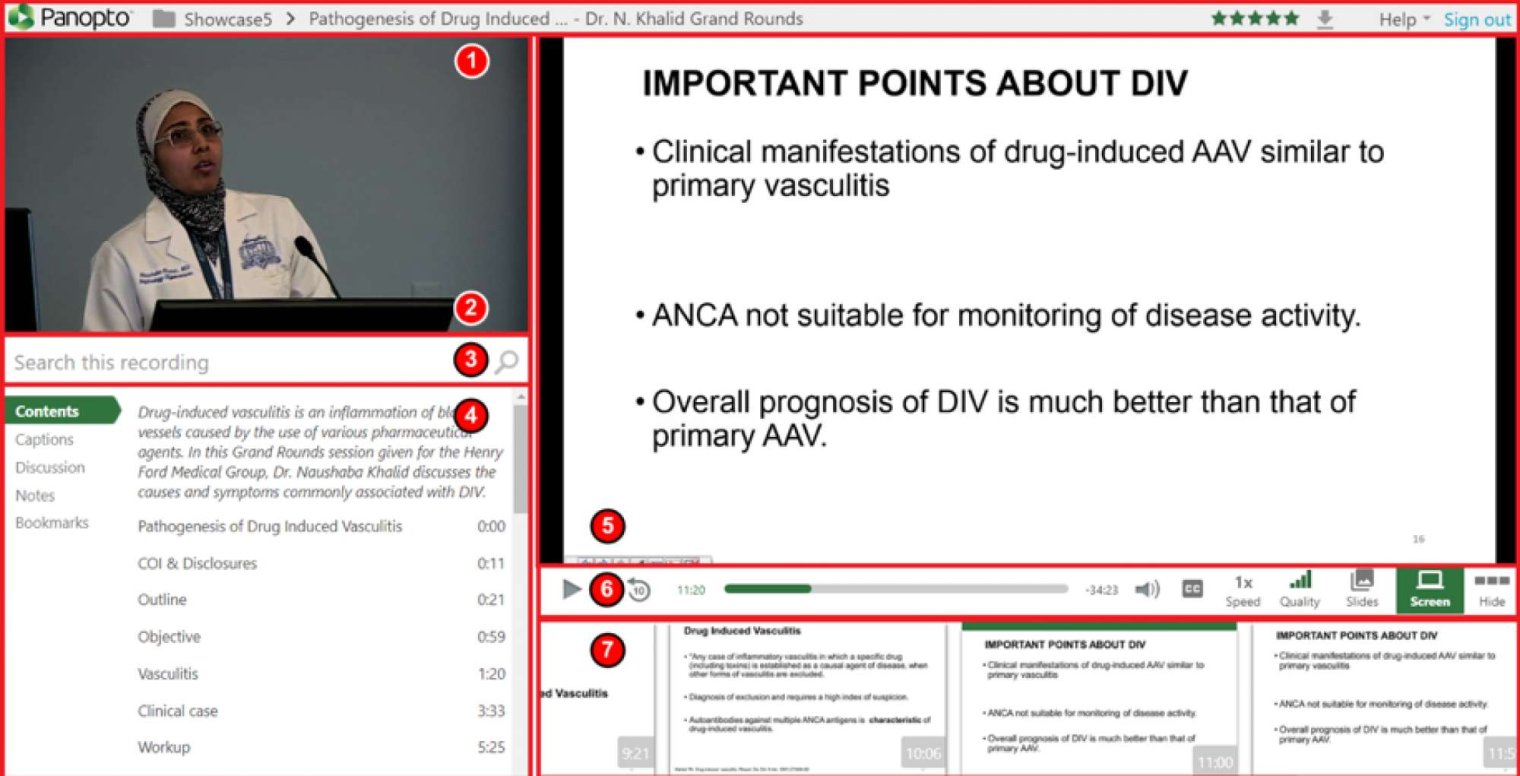
On this page you will find the following tools:
| Item Number | Tool Name | Tool Description |
|---|---|---|
| 1. | Information Bar | The information bar displays the name and date of the session as well as the folder the session belongs to. The help drop-down and sign out button are also found in the information bar. |
| 2. | Primary Video/Audio window | The primary video and/or audio stream. If there is only primary audio stream, the primary window doesn’t appear. If primary video is included, it is typically of the presenter. |
| 3. | Search field | Allows you to locate any text you can see or hear in the presentation. |
| 4 | Contents, Captions, Discussion, Notes and Bookmarks. | The Content section allows you to see all table of contents entries with timestamps for the video and you can click on them to jump right to that point in the video.
The Caption section will only appear if the creator of the session chose to caption the recording and it will include a complete transcript of the captions. You can take notes while viewing a session to refresh your memory later. Additionally, any note you take will become searchable. Bookmarks allow you to save a particular spot in a recording to revisit at a later time. Bookmarks will also show up in your search results. Discussions allow you to leave a public comment on a session for others to see. |
| 5 | Screencapture, PowerPoint or any secondary video | View video |
| 6. | The Player | Allows you to view the recording as well as control what you see |
| 7. | Thumbnails | Timestamped thumbnails for navigation |
Below are links to additional resources: