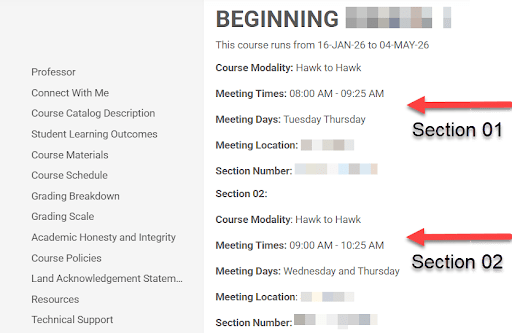
Updating the Montclair Syllabus for Cross-Listed Course
When cross-listing courses in Canvas, the course information section of the Montclair Syllabus will display the details from the master course, and this portion cannot be edited. If you need to include course information for additional sections, you can add a new component to provide those details.
Adding Course Information for Additional Sections
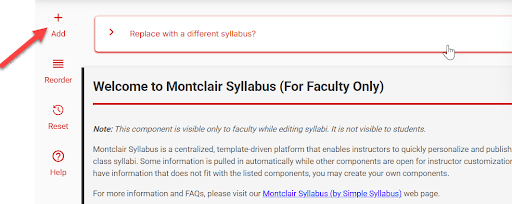
In Edit mode, click the "+Add" button.
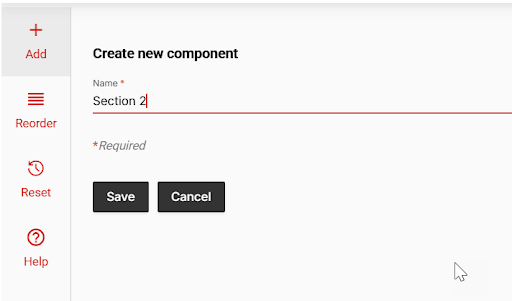
Enter a name for the new component then click "Save."
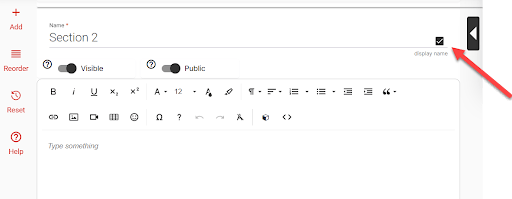
Disable the "display name" checkbox to hide the component name. This will help the added information appear as though it is part of the main course information.
The new component will appear at the bottom of the syllabus.
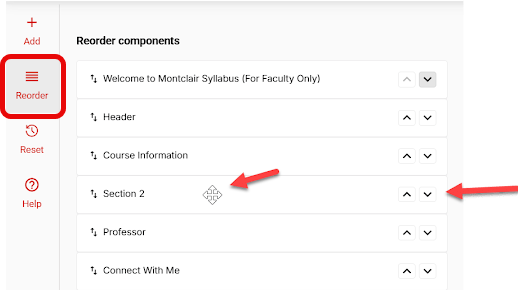
To move the component to the top under the Course Information, click the "Reorder" button. Either use the up and down arrows to shift it one position at a time or click and drag it into place.
Click "Close" you’re finished.
To add the course information for the cross-listed section, you can either enter the details manually or copy the information from the original section, paste it into the new component, and modify it as needed.
Submit your changes when you’re finished. The image below shows how the new component appears seamlessly alongside the original section information.