
Simple Syllabus: Import and Reset Syllabus Content
This guide provides step-by-step instructions for importing content from an existing syllabus and resetting content when revisions or updates are needed. Whether you are preparing a course for a new semester or making significant changes to your syllabus, these tools can help streamline the process and ensure your syllabus remains accurate and up to date.
Import a Montclair Syllabus from a Previous Course/Term
- Navigate to "Montclair Syllabus" in your course menu.
- Click "Edit."
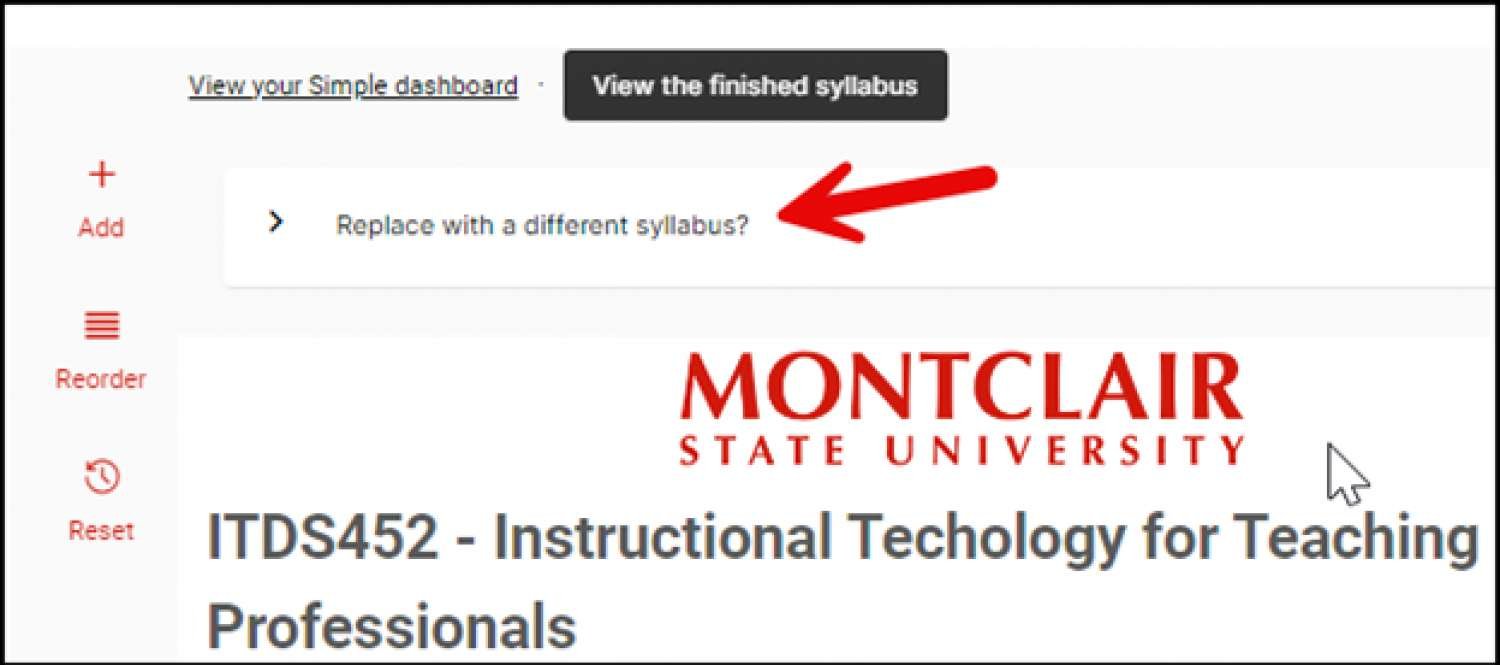
- Click "Replace with a different syllabus?"
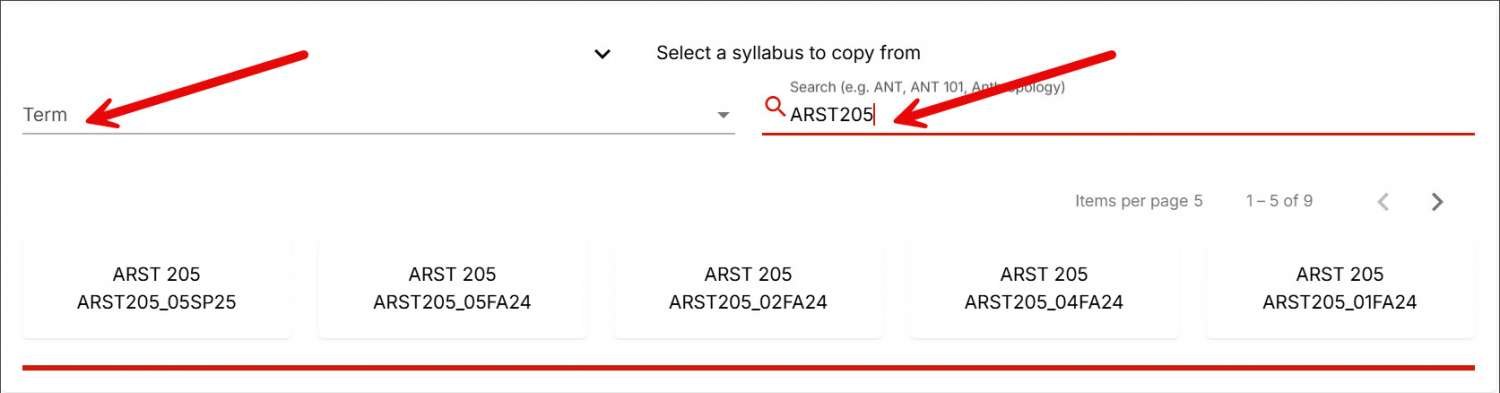
- Using the Search and filter tool, find the syllabus you would like to copy by selecting the appropriate term from the Term drop-down list or use the Keyword search bar.
- Click on the syllabus you would like to copy to begin your import.
- After the import is complete, make any additional changes, click "Submit."
Resetting Component Content
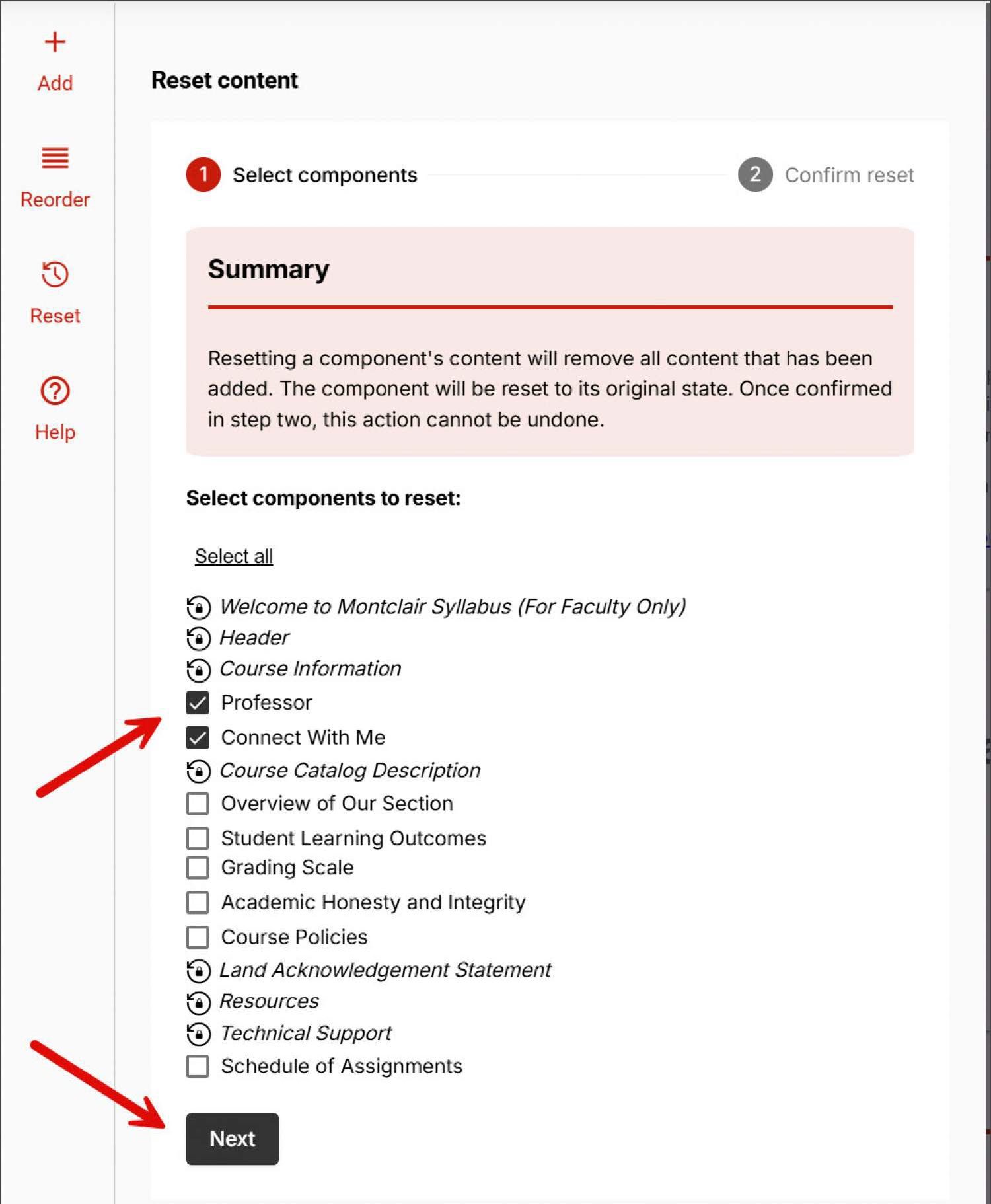
Resetting a component’s content will remove all content that has been added. The component will be reset to its original state. Once confirmed in step two, this action cannot be undone.
- Navigate to "Montclair Syllabus" in your course menu.
- Click "Edit."
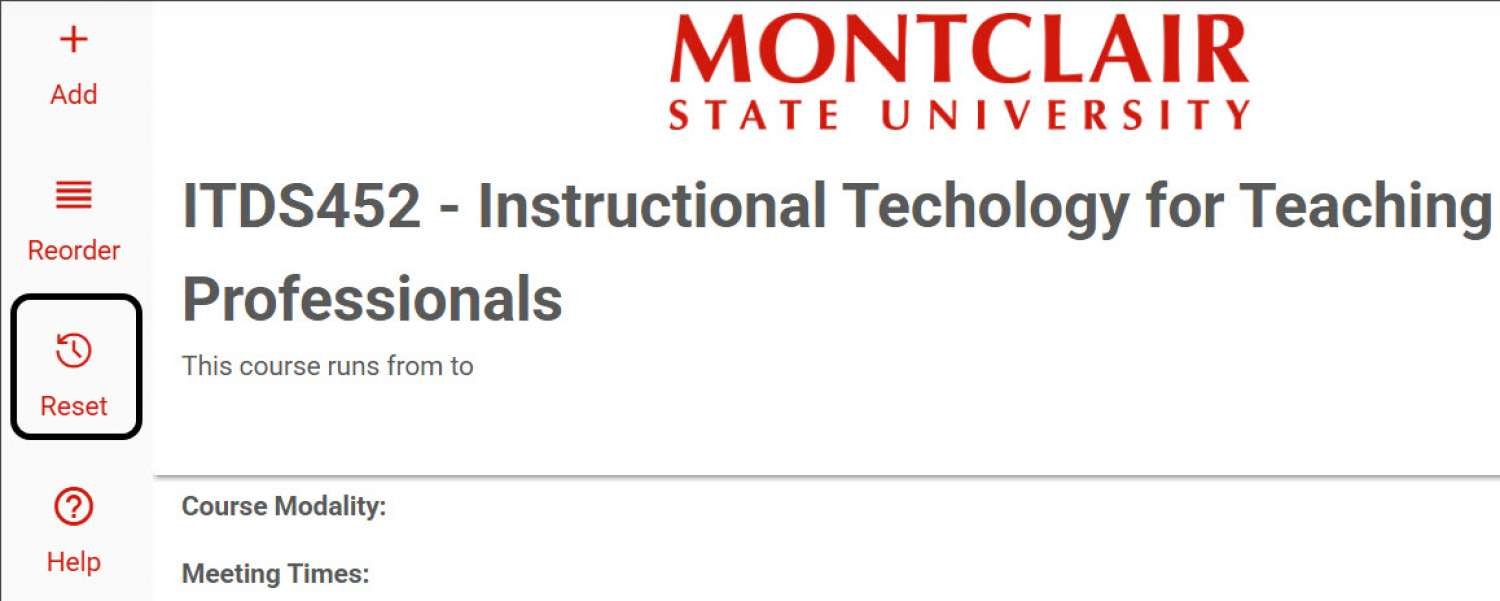
Click "Reset."
- Select the components you would like to reset.
Click "Next.
- Click "Reset."