Simple Syllabus: Navigate and Edit Your Syllabus
This guide will walk you through accessing your syllabus, navigating the editing workspace, modifying existing content, and adding additional components to meet your course needs. these step-by-step instructions will help you efficiently manage your syllabus and ensure students have access to accurate and comprehensive course information.
Accessing the Montclair Syllabus
Accessing the Montclair Syllabus
Click on “Montclair Syllabus” from your Canvas course navigation.
Click "Edit" to open edit mode.

Note: “Montclair Syllabus” is not functional in sandbox, template, or community course shells. Additionally, the Canvas “Student View” option is not fully compatible with “Montclair Syllabus” and is not recommended to preview your syllabi.
Navigating in the Montclair Syllabus
The “Montclair Syllabus” is broken up into components. The baseline syllabus template contains many helpful components which are distributed university-wide. Some departments or courses come with additional components by default. Many templated components can be modified; however, certain components, such as “University Policies” are locked and cannot be modified by the instructor.
Modify Options
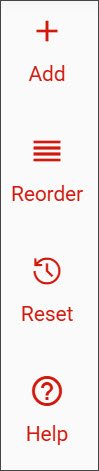
The top left will contain three options:
- Add – add an additional component
- Reorder – change the order of components
- Preview – preview the syllabus
- Help – Simple Syllabus help and knowledge base
Help Text
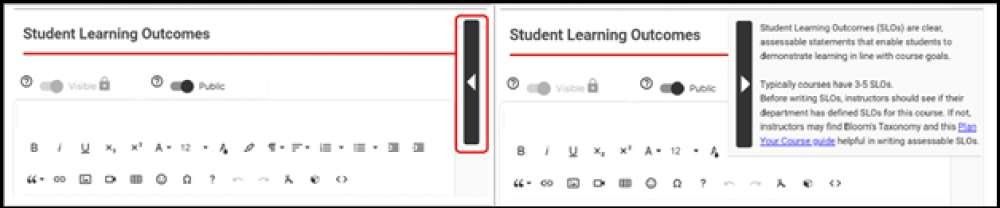
Each component has “Help text” on the right-hand side. If “Help text’ is hidden, click on the arrow to show the text.
Privacy and Visibility Options
Syllabus components also contain visibility options:
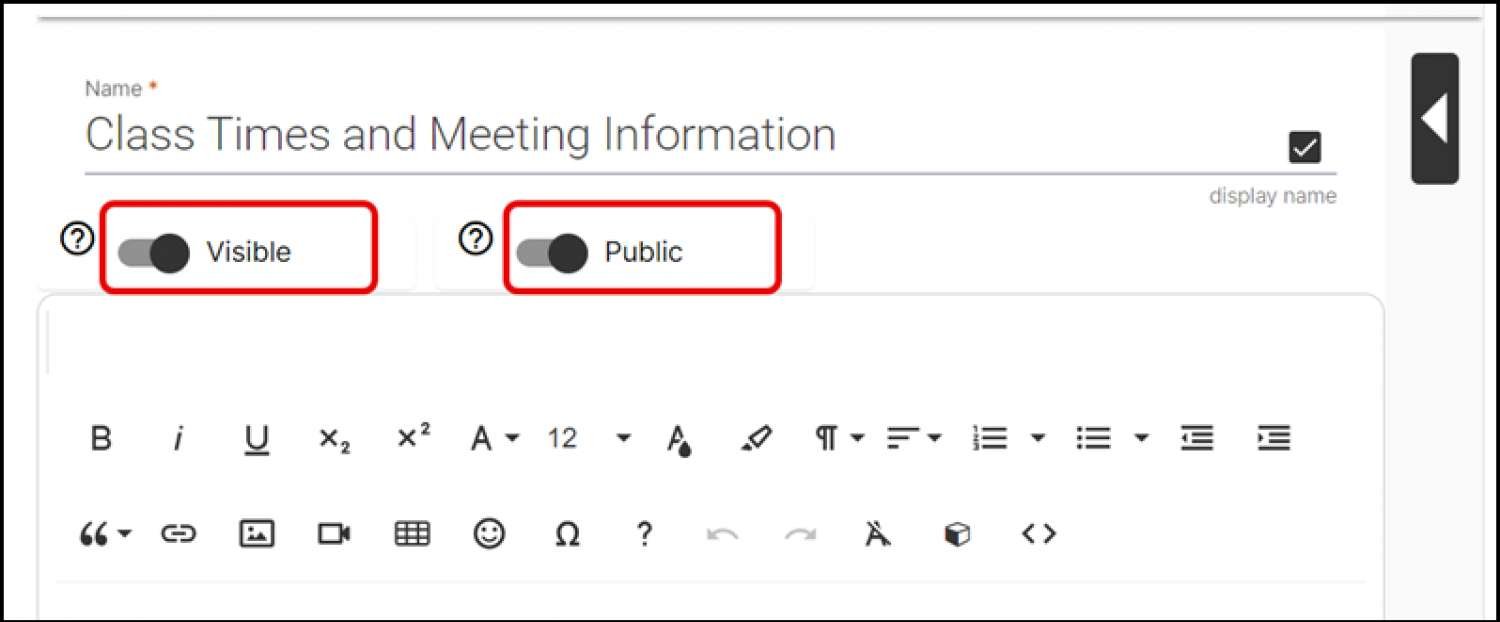
- Visible – “Visible” means that the component will appear on the finalized version of the syllabus if it contains content. This is set as the default. If you do not wish to show a component in the finalized version click to change to “Invisible”.
Note: Leaving a component blank will also render it invisible on the syllabus.
- Public – “Public” means that Montclair’s faculty and staff can see this information displayed in the Simple Syllabus Library when the syllabus is published. “Private” means that only the instructor and students in that course can see the information when the syllabus is published. The default is set to “Private”.
Edit the Montclair Syllabus
If the syllabus component has a text box you can type your information directly into the text box or copy and paste from another application.
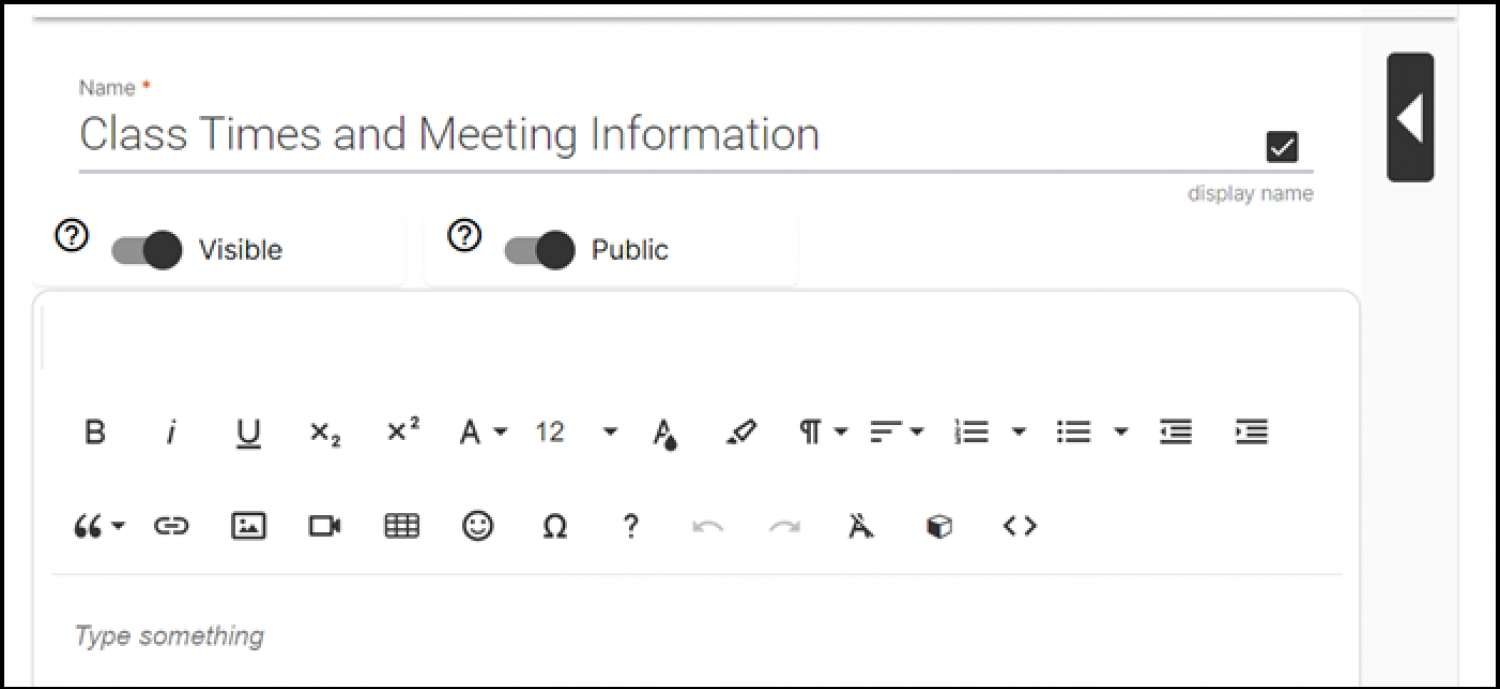
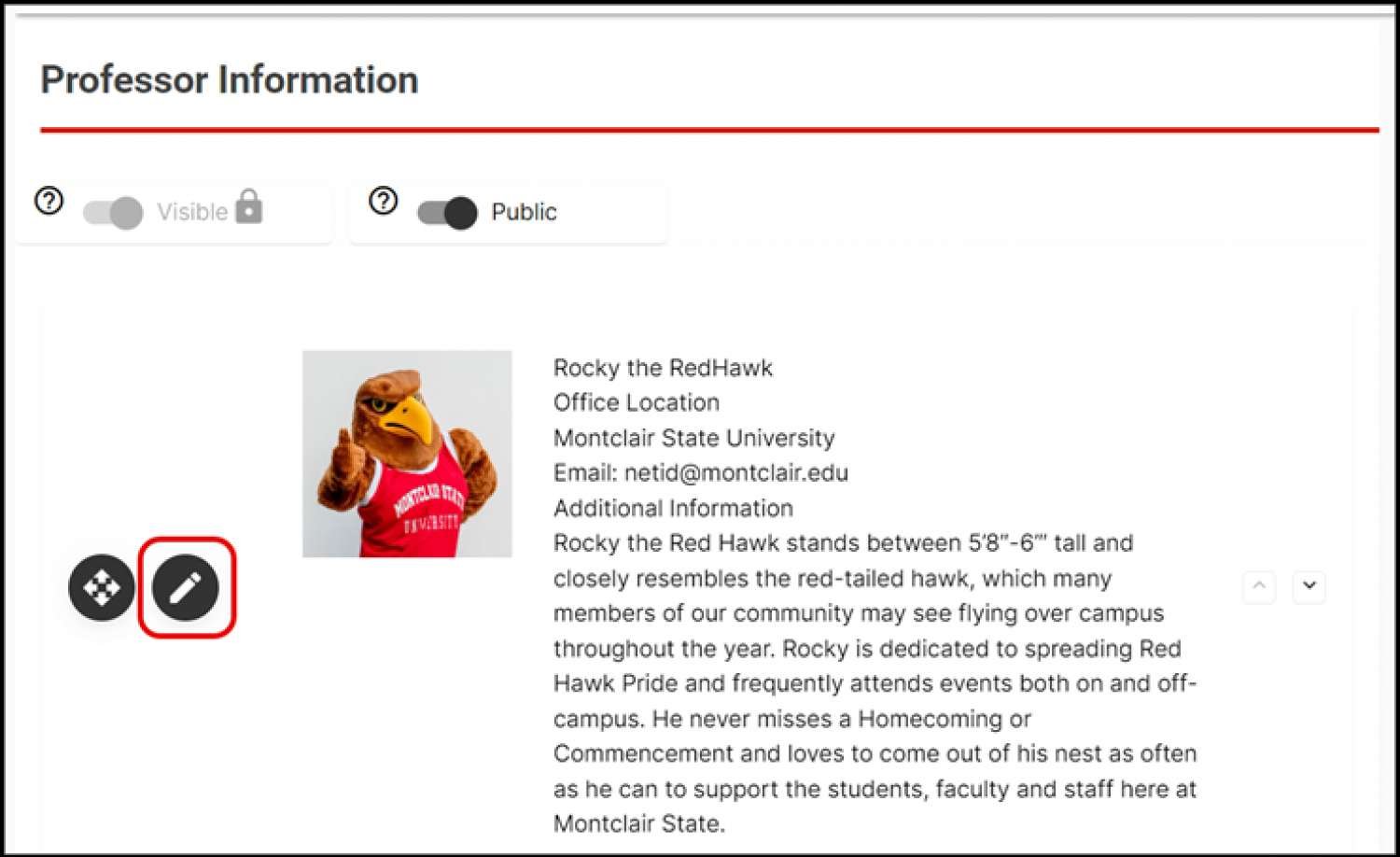
If the syllabus component looks like the one below, click the pencil icon to edit the information in that field.
Adding Additional Components
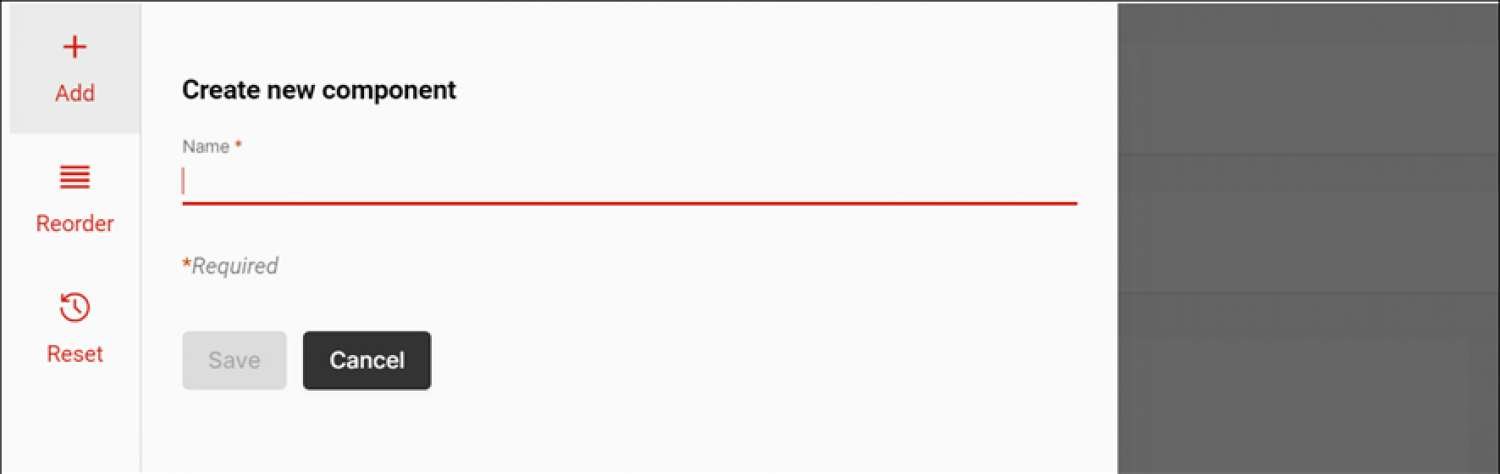
You can add additional components by clicking on the + Add new component at the bottom of the syllabus or + Add at the top of the syllabus.

Additional components can be named, reordered, and imported at your discretion.