
Simple Syllabus: Templates
What is a Template?
A Template in Simple Syllabus is a predefined syllabus structure that breaks down content into individual components of information instead of a comprehensive document so that it can be authored in a more granular fashion that saves time and ensures accuracy.
Each level of our organizational structure has its own syllabus template, and components built at a higher level will be reflected on lower level templates. At Montclair State University, our structure is as follows:
Montclair State University > College > Department > Subject
- Example of a higher-level template change: When a change needs to be made to a policy, or other crucial institutional information that is to be reflected on all associated templates, the administrative user will only need to make the change once and the change will be reflected on all syllabi using that template.
- Example of a lower-level template: A faculty member or Course Designer can reorder, add a component or remove a non-crucial component to their syllabi template.
Note: The user can only modify the template or template components for which they have the appropriate permissions.
Montclair Example Structure
In the graphic below, if a change is made at the top level University template in component A, all lower level department templates will see this change. This also means that all syllabi at the University level will see this component as well.
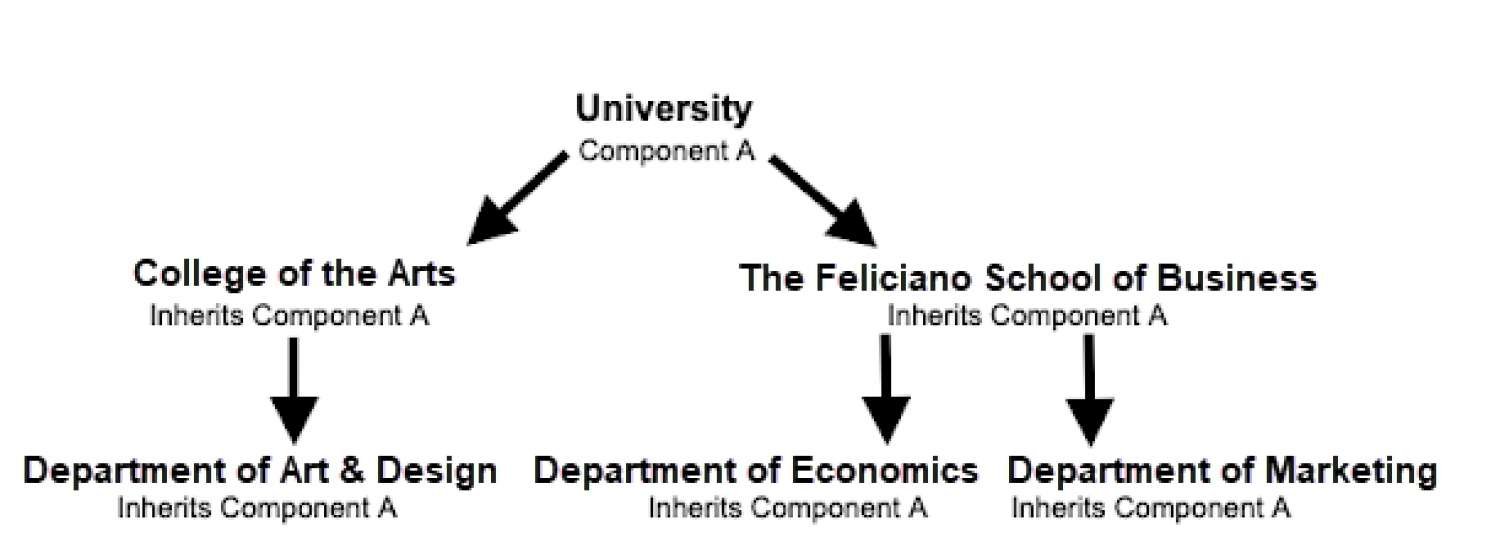
In addition to the University template at the top level, each organizational entity can have its own template which will be inherited by all of its children. Based on assigned roles/permissions, users may make modifications to lower-level templates. These modifications include adding, removing, or reorder components.
Example Structure:
Montclair State University (University)
- College of the Arts (College)
- John J. Cali School of Music (Department)
- Applied Music (Subject)
- Music (Subject)
- John J. Cali School of Music (Department)
- Feliciano School of Business (College)
- Accounting and Finance (Department)
- Accounting (Subject)
- Economics (Subject)
- Accounting and Finance (Department)
For example: If the College of the Arts needs a specific component on their template that no other college needs, this can be achieved by editing the College of the Arts template.
Access and Setup a Template
Once you have been assigned the Department Representative role you can access your department templates by doing the following:
- Go to montclair.simplesyllabus.com and log in.
- Click on Templates.
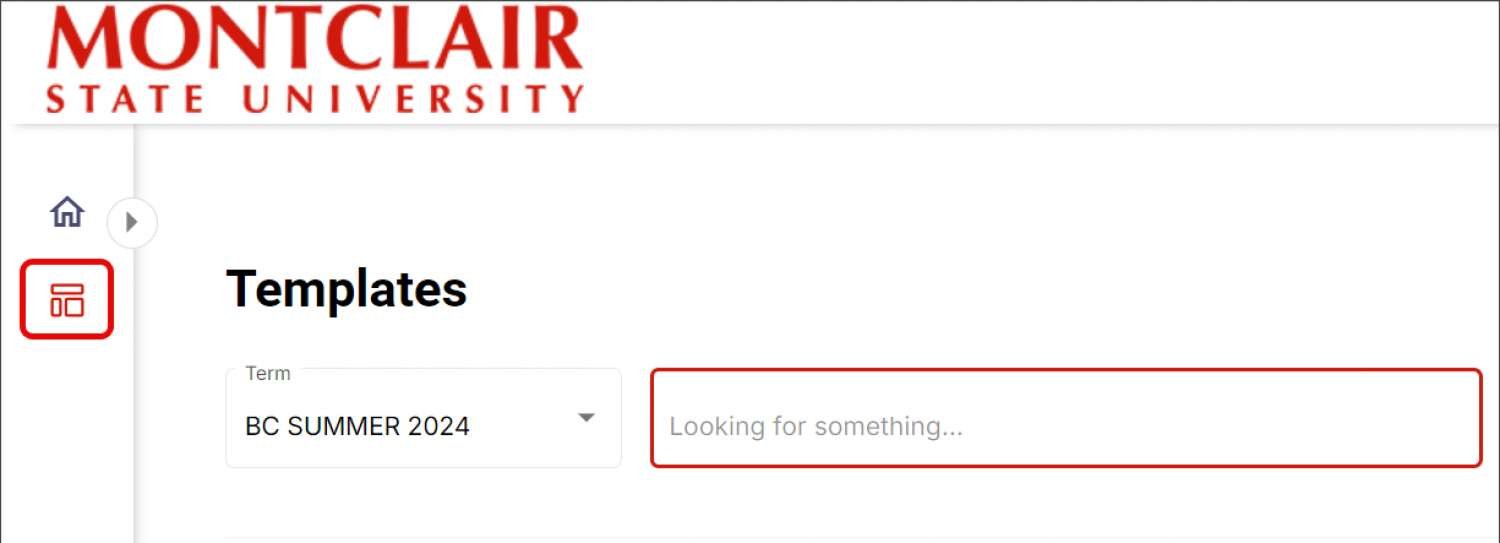
- To select the desired template, use the Term drop-down menu.
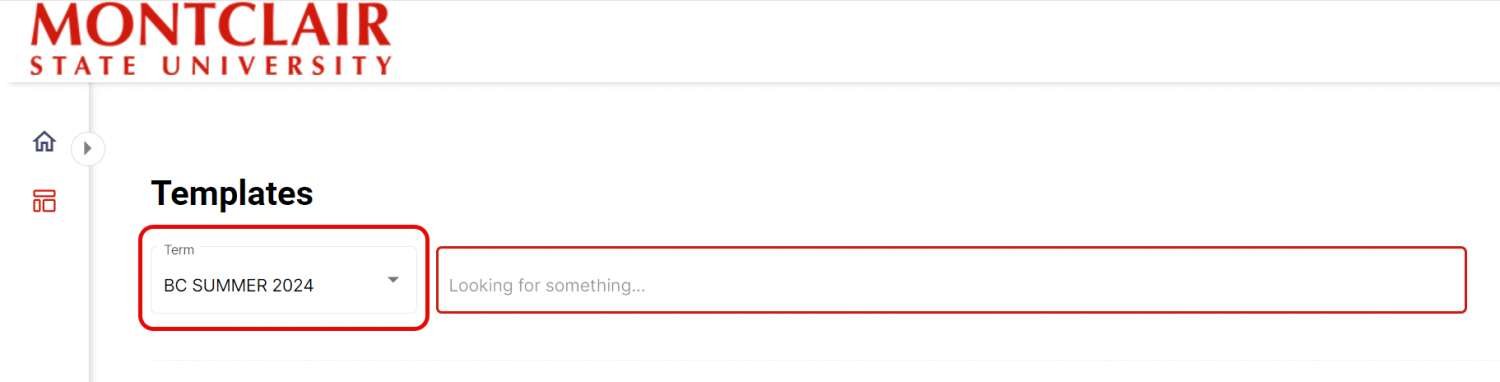
- The Departments and/or Subjects you have access to will be listed (ex. Nursing).

- Click Edit.

IMPORTANT: Each template in Simple Syllabus is tied to a term, so if a template is edited, it is edited for a specific term. It is important to keep in mind that each time a new term is created, the template from the most recent term will automatically be used for the new term.
Edit a Template
Add/Modify Components
Modify Component
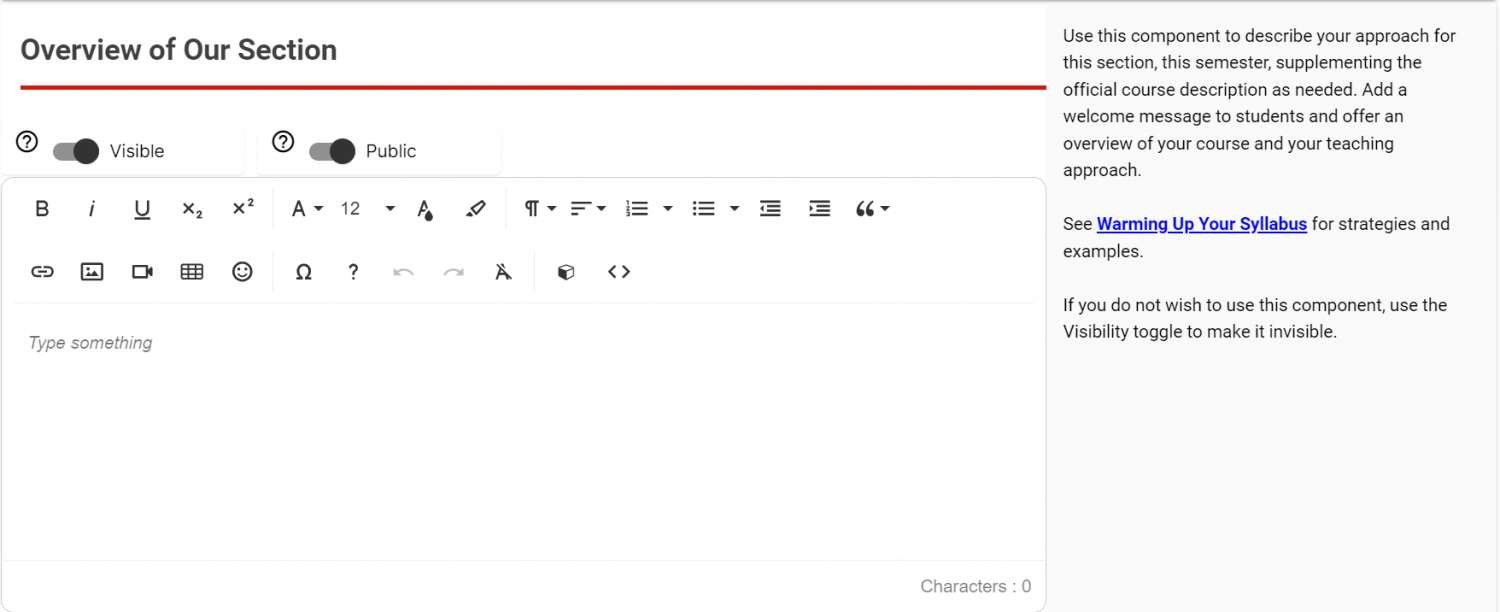
If the syllabus component has a text box you can type your information directly into the text box or copy and paste from another application.
Add Component
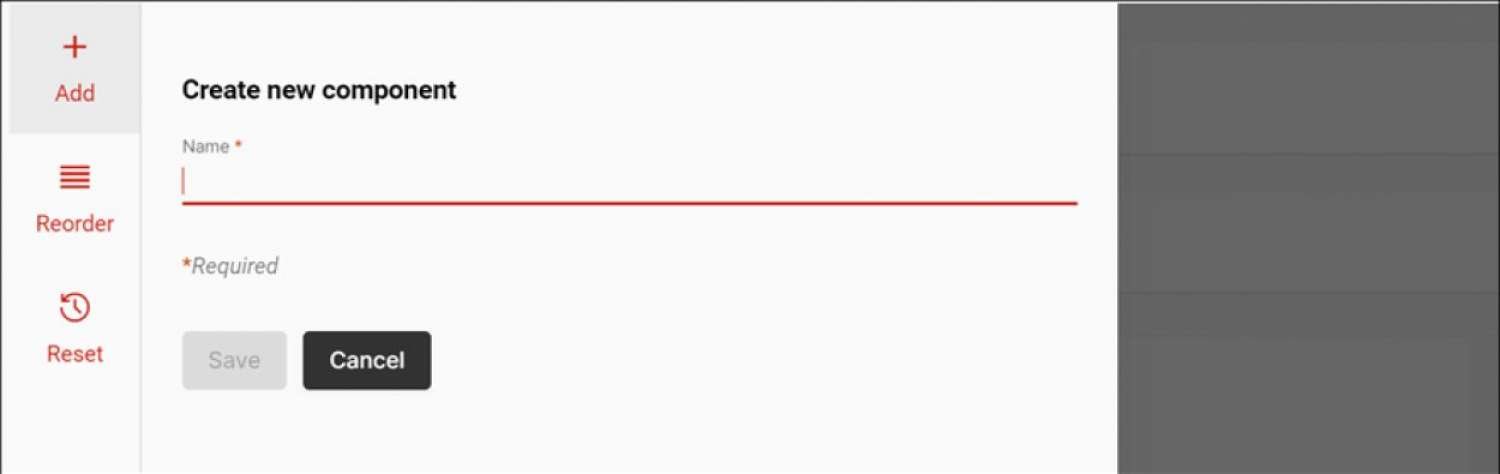
You can add additional components by clicking on the + Add new component at the bottom of the syllabus or + Add at the top of the syllabus.

Additional components can be named, reordered, and imported at your discretion.

Add Conditional Content
Conditional components provide even more flexibility over the content displayed in syllabi by setting up business logic to determine which content to retrieve.
Common Examples:
Delivery method: This component will indicate whether the course is delivered online or in person.
Campuses: This component will indicate if the course takes place on the main campus.

Lock Component
You can lock a component on a higher-level template by checking the Lock box in the component settings.
Locking a component using the checkbox will prevent it from being editable in a child template.
Ignore Previous Content for a Future Term
IMPORTANT: This solution will only work in the future term. So, only move forward with this solution if you would like to change this for the future term and not the current term.

Enabling the Ignore Previous Content setting on a component at the template level will prevent any lower-level content entered in previous terms from carrying forward, and will instead show the content that was entered on the template in the current term.
This feature can also be used to prevent any former course or section-level edits from a previous term from rolling forward into the new term. If you wish to have the instructor start with a blank component for this specific portion of the syllabus, for example, you can select the Ignore Previous Content option for that component in your new term template.
Editors Permissions (Only available at the Template level)

Department Representatives can control who will have the ability to make changes to a component created at the template level. The options for the Editors section of a component are: Course and/or Section.
Course: If enabled, Department Representatives, Instruction Designers and Designers can edit the component.
Section: If enabled, Instructors, Instructional Designers and Teaching Assistants (TA) can edit the component.
Add Help Text
Help text: Enter custom text to help guide instructors as they edit a component. Help text can be formatted and can include links, videos, and images. You must click in the Help text area to edit the text.
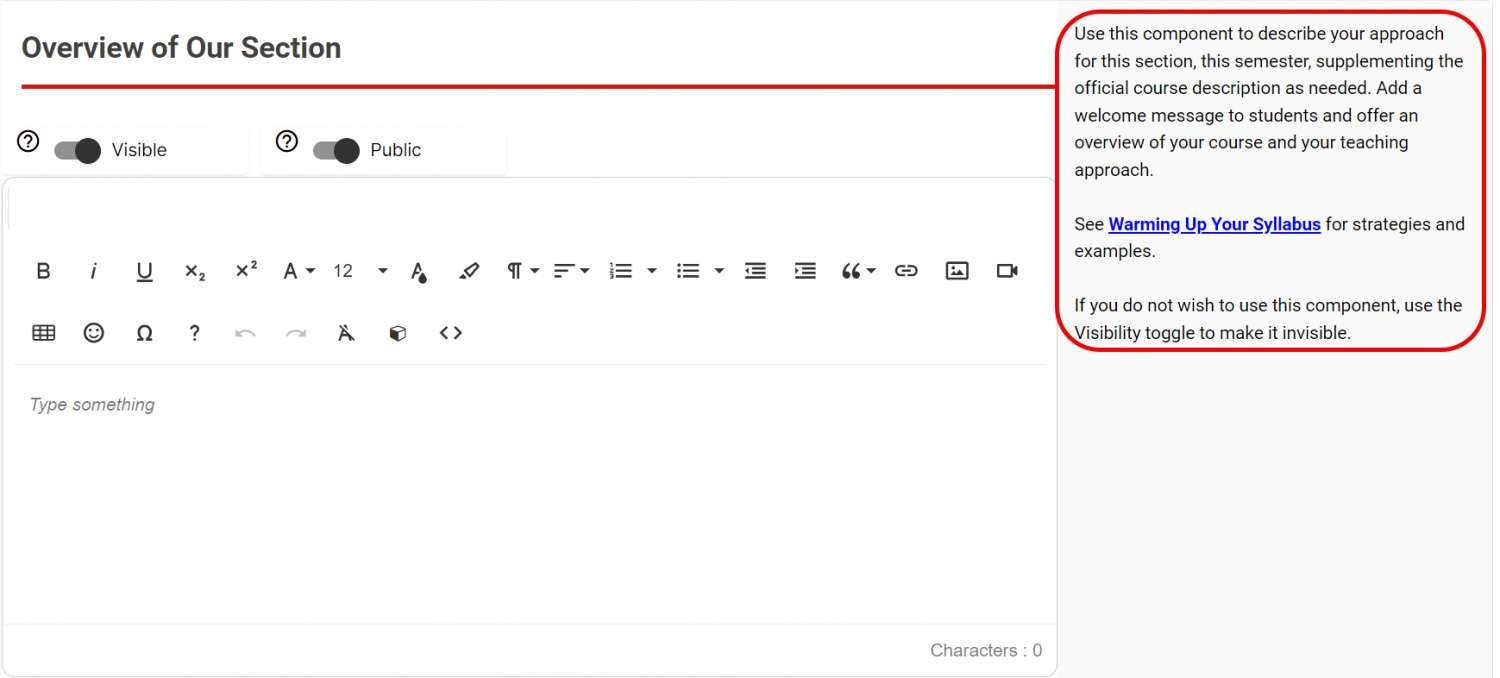
Note: Help text can only be created/edited on a custom component at the level it was created (ex. Template, Course Master, Montclair Syllabus). For example, if help text is created at the Template level, it cannot be edited at the Course Master level.
Note: To request access to Simple Syllabus Templates or Course Masters, please complete the Simple Syllabus Elevated Access Request form.