
YuJa Panorama (Accessibility)
What is YuJa Panorama?
Panorama, an accessibility tool from YuJa, will be available starting March 2026. It is a platform that scans the accessibility of digital content within a Canvas course (pages, documents, images, etc.) and assigns an “accessibility score” based on how accessible the file or custom page is based on a number of criteria. Criteria include document/page structure, tagging, and order, alternate text for images, color contrast, and other parameters. This is then communicated back to instructors with an accessibility report on how to improve the accessibility score of the content. YuJa Panorama also generates alternative formats of files to support students with diverse learning needs. Students can access the content multiple ways, such as via HTML, audio, electronic braille, and other formats. In addition, Panorama's DocHub provides a secure, cloud-based repository for storing accessible documents, enabling you to upload and manage files, share them with others via email, and synchronize your accessible content across multiple devices.
For more information on this tool please see our Panorama resources section.
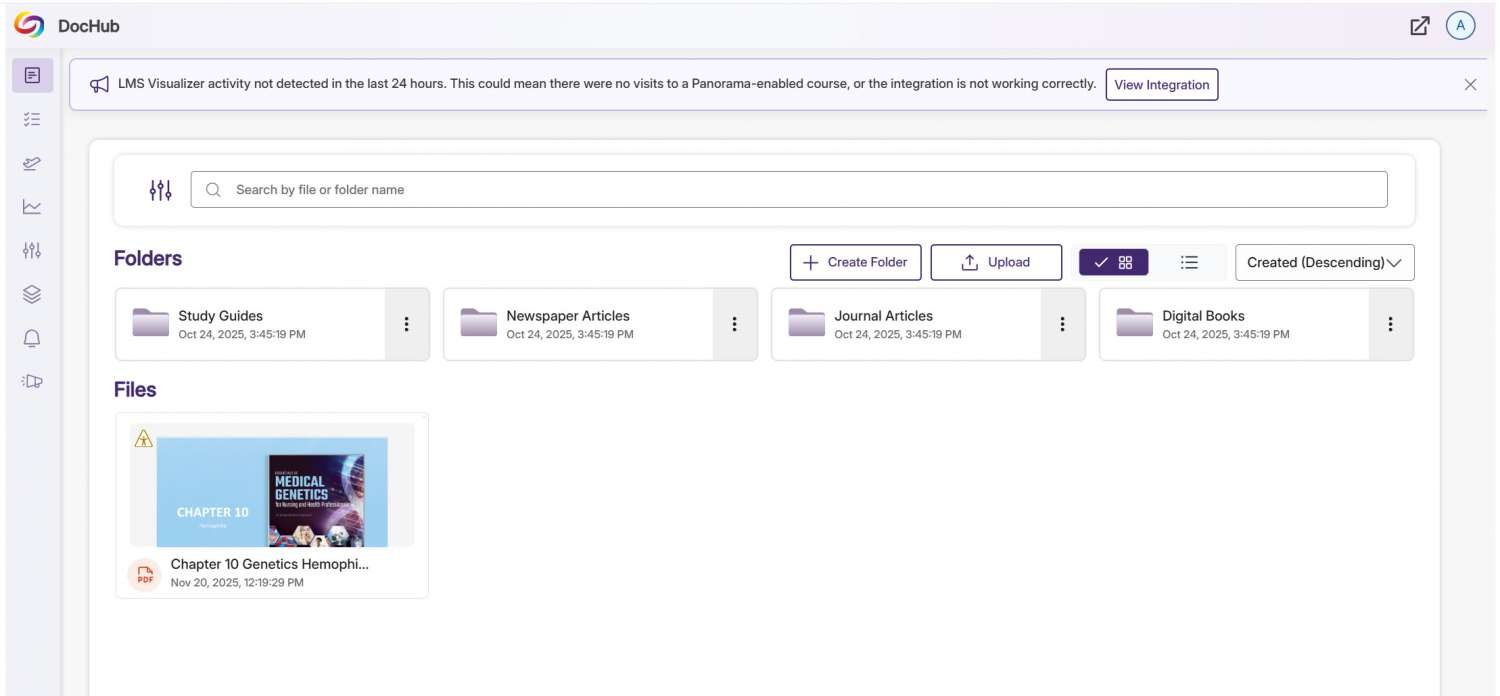
Panorama DocHub
The DocHub page is a platform for accessible document storage that allows you to upload and store files in YuJa Panorama Cloud. You can share files via email and synchronize your accessible content across multiple devices. This hub is available to students, instructors and staff.
The Doc Hub can be accessed two ways:
- within Canvas via the YuJa Panorama (Accessibility) course navigation menu
- outside of the LMS via https://montclair.panorama.yuja.com
Steps to login to the Panorama DocHub
- Navigate to Panorama DocHub in your browser.
- Click the Sign in with SSO button.
- If prompted, log in using your Montclair Net ID and password.
Note: Students cannot see any accessibility scores or reports.
Panorama Resources
- Getting Started With YuJa Panorama for Students in Canvas
- Getting Started with YuJa Panorama for Instructors
- YuJa Panorama Doc Hub
- YuJa Panorama Course Accessibility Report
- YuJa Panorama Accessibility Score Indicators
- YuJa Panorama Instructor Feedback: Accessibility Report
- YuJa Panorama Alternative Formats
- Adding Alt Text to Images in Canvas Using YuJa Panorama
- Resolving the Accessibility Issues for Your Documents
- How to Update a Document with Its Alternative Format
- YuJa Panorama’s Accessibility Checklist
- YuJa Panorama Training
- YuJa Panorama Support
Panorama Course Accessibility Report
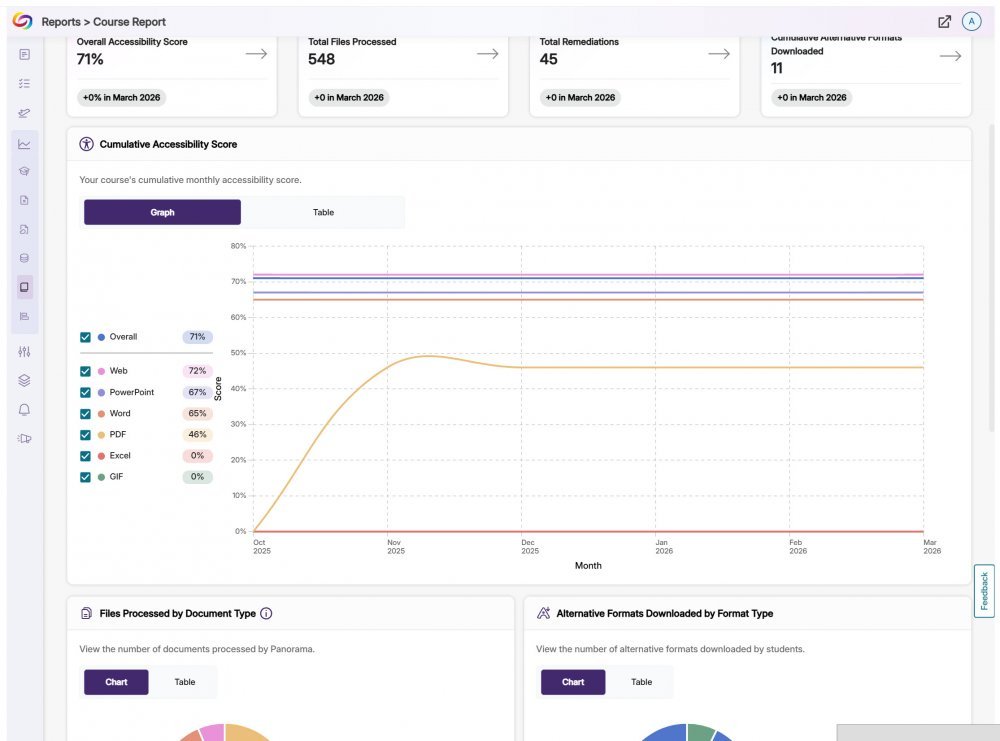
YuJa Panorama’s course accessibility report can be located on the navigation menu of your course, Panorama (Accessibility), and gives you an overview of your scores, progress over time, and scores for specific types of content so that you can get the big picture.
Note: The Course Accessibility Report is not visible to students.
If YuJa Panorama is not appearing in your course’s navigation menu, please refer to the guide on managing your course navigation links.
Course Report Refresh vs. Reprocessing a Course
For the most accurate accessibility score, you may want to reprocess your course before reviewing the results. Performing a refresh only affects the course report.
Refreshing the Course Report
Refreshing your course report updates the analytics and accessibility data that Panorama has already processed. It only refreshes the course report without reprocessing any files. The Refresh option can be accessed from the course's Panorama (Accessibility) under Course Report in the upper right hand corner.
Reprocessing the Course
Reprocessing your course performs an entirely new scan of the course content and rescores it based on the current version of the course. The Reprocess Course option can be accessed from the course's Panorama (Accessibility) under Configuration → General Settings → Course Settings
Panorama Accessibility Score Buttons and Indicators
YuJa Panorama measures the accessibility of digital content and shows you at a glance how it scores. Scores range from Minor to Severe. A higher score means fewer issues.
Accessibility Score Buttons Key
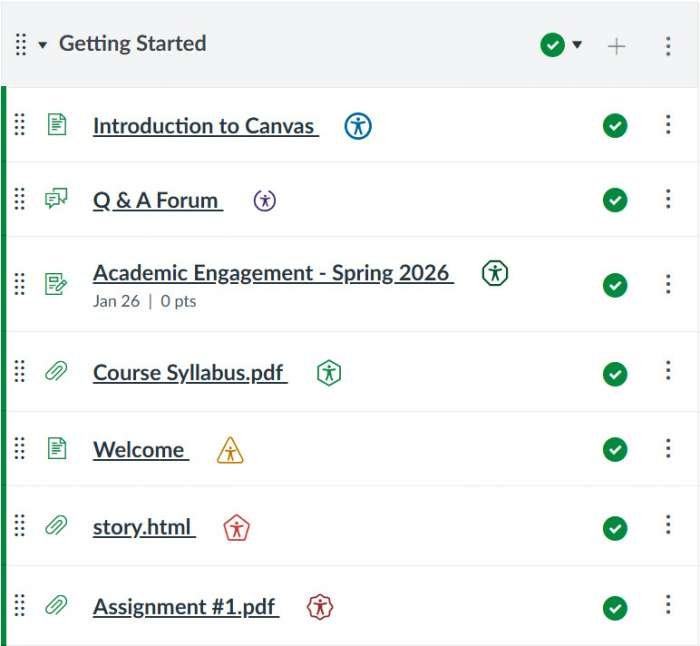
- Blue circle icon: Accessibility icon (Student View)
- Dark Green octagon icon: Very high accessibility scores
- Green hexagon icon: High accessibility scores
- Yellow triangle icon: Medium accessibility scores
- Red pentagon icon: Low accessibility scores
- Red rounded octagon icon: Very low accessibility scores
- Grey prohibition icon: Your institution has disabled the alternative formats for this document
- Purple partial circle icon: The file is being processed for accessibility
Severity Indicators
Accessibility scores are calculated based on the range of the highest severity level. Severity levels are defined as Minor, Major, and Severe.
Listed below are the ranges for each severity level.


- Minor: 70% – 100% – These issues should be considered for a better accessibility score.
- Major: 30% – 70% – These issues impact accessibility, and while not severe, require attention.
- Severe: 0% – 30% – These issues are the greatest risk to accessibility and require the most attention.
Panorama Instructor Feedback: Accessibility Report
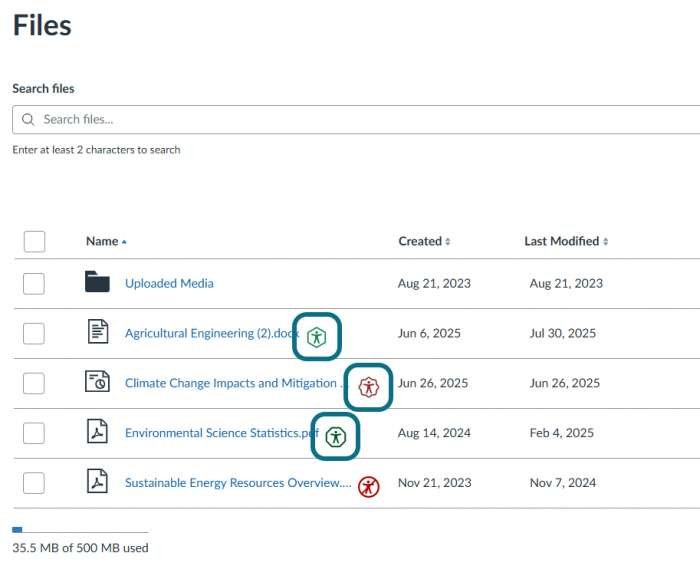
Once your course scan is completed, YuJa Panorama can provide detailed feedback regarding the current issues that exist in your course (missing document tags, no alternate text, color contrast, etc.). Clicking the Accessibility Score button next to each file and/or custom page in your course will open the Accessibility Report, where you can review the digital content’s accessibility report, access alternative formats, and address any identified issues. YuJa Panorama will also give video tutorials and step-by-step instructions on what a particular issue means and how to fix the issue. In some cases, instructors will be able to make the changes directly within YuJa Panorama; for more severe issues, instructors you may be prompted to make the fixes externally.
Note: The Accessibility Report is not visible to students.
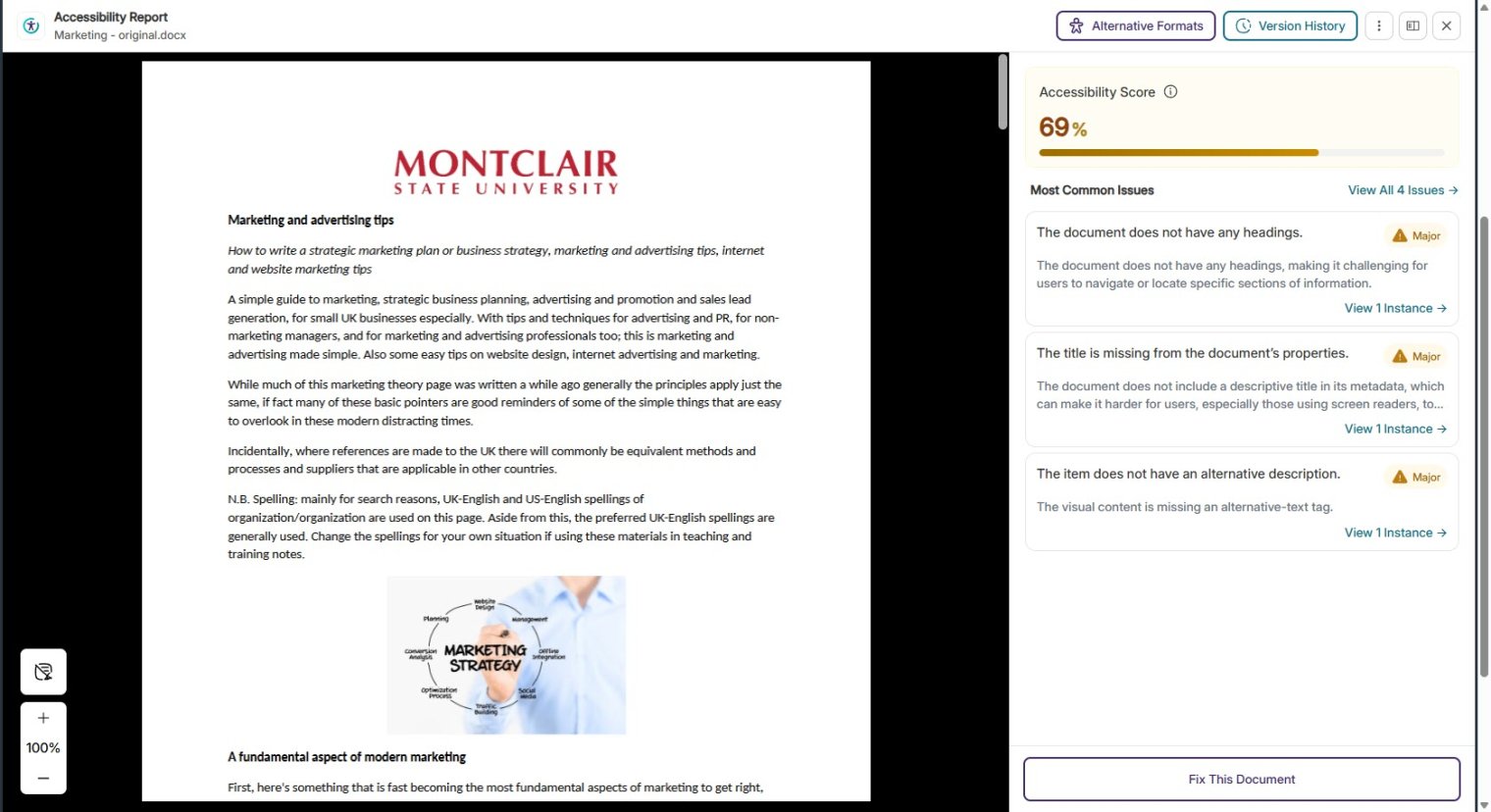
For details on the specific accessibility checks YuJa Panorama performs, and how they are categorized, you can refer to the YuJa Panorama’s Accessibility Checklist.
Panorama Alternative Formats
YuJa Panorama allows students and instructors to download any file in a number of different formats, increasing the ways they can access the content of the custom page or file.
Below is a list of available YuJa Panorama alternative formats:
Alternative Formats Menu
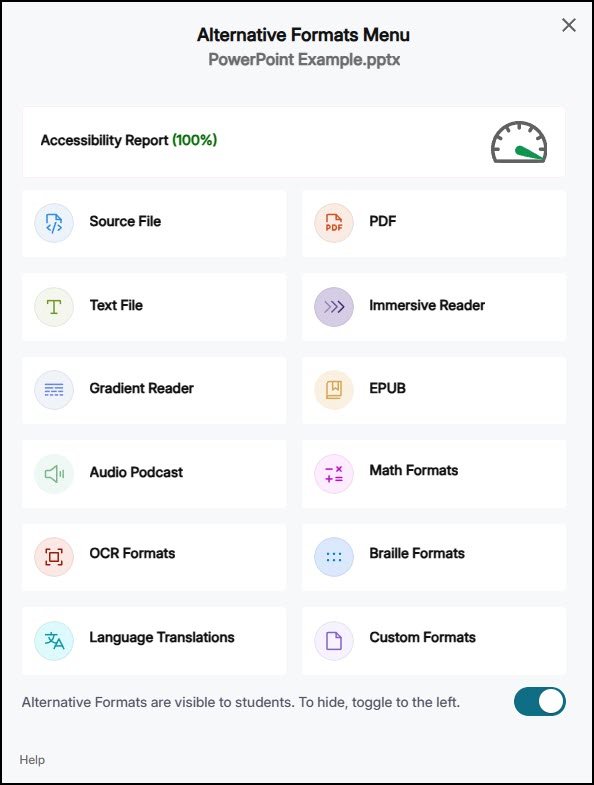
- Source File: View the document in its original format, suitable for download viewing.
- PDF: View the document in PDF format, suitable for both online and download viewing.
- Text File: View the document in a pure text format without any formatting styles, suitable for both online and download viewing.
- Immersive Reader: Allows for customizations to text preferences, grammar options, and reading preferences while following along with the audio playback.
- Gradient Reader: Enhances visual word recognition when reading by providing a guiding color gradient.
- EPUB: View the document in the ebook format, suitable for any ebook reader application.
- Braille: View the document in the braille grade 2 format, suitable for download viewing (a braille reader is required).
- Audio Podcast: Audio playback for documents, suitable for both online and download listening.
- Enhanced HTML: HTML documents can be displayed in a dedicated tab to customize the appearance of the document using the Website Accessibility tool.
Optical Character Recognition (OCR) Formats
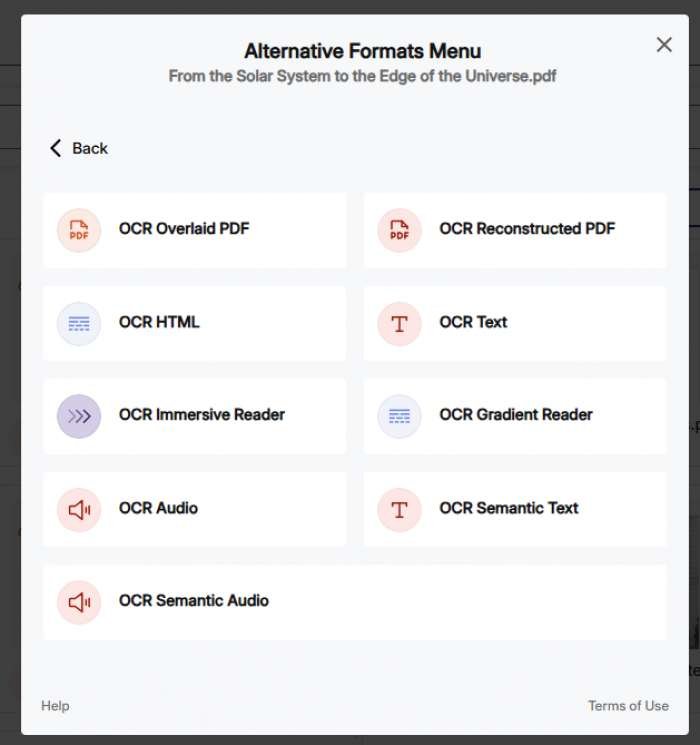
- OCR: Convert images with text into machine-encoded text that can be searched and read by screen readers.
- OCR Overlaid Tagged PDF: Generate a tagged PDF that allows for selectable text overlaid on the original document
- OCR Reconstructed DOCX: Generate a brand new DOCX file from scanned documents or images.
- OCR Reconstructed Tagged PDF: Generate a brand new tagged PDF from scanned documents or images.
- OCR Reconstructed HTML: Generate a brand new HTML file from scanned documents or images.
- OCR Text: Recommended for those who’d like plain text, the OCR tool will extract and display text within images and GIFs as a TXT file.
- OCR Audio: Extract text within images and GIFs into an MP3 text-to-speech audio player.
Math Formats
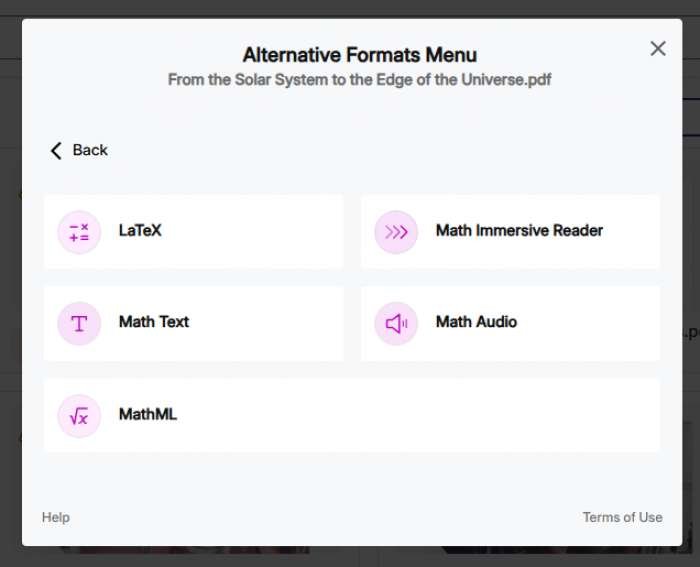
- Math Formats: Convert documents containing math equations into LaTeX, Math Text (i.e. numbers and symbols to words), or MP3 files.
- Latex: Convert documents into LaTeX document format.
- Math Text: Convert documents into printed English, including numbers and symbols.
- Math Audio: Convert documents to MP3.
- MathML: Extract mathematical equations from documents and convert them into HTML files.
- Language Translation: Translate a document automatically to over 100 languages, which can be downloaded.
Note: However, a caveat is that the more accessible a file is, the better the output of the alternative format will be. Thus, a file with low accessibility rating will have a degraded alternative format as compared to a file with a higher accessibility rating.
Panorama Support
YuJa Panorama support is available 24/7 and can be accessed in Canvas through the YuJa Panorama Console.
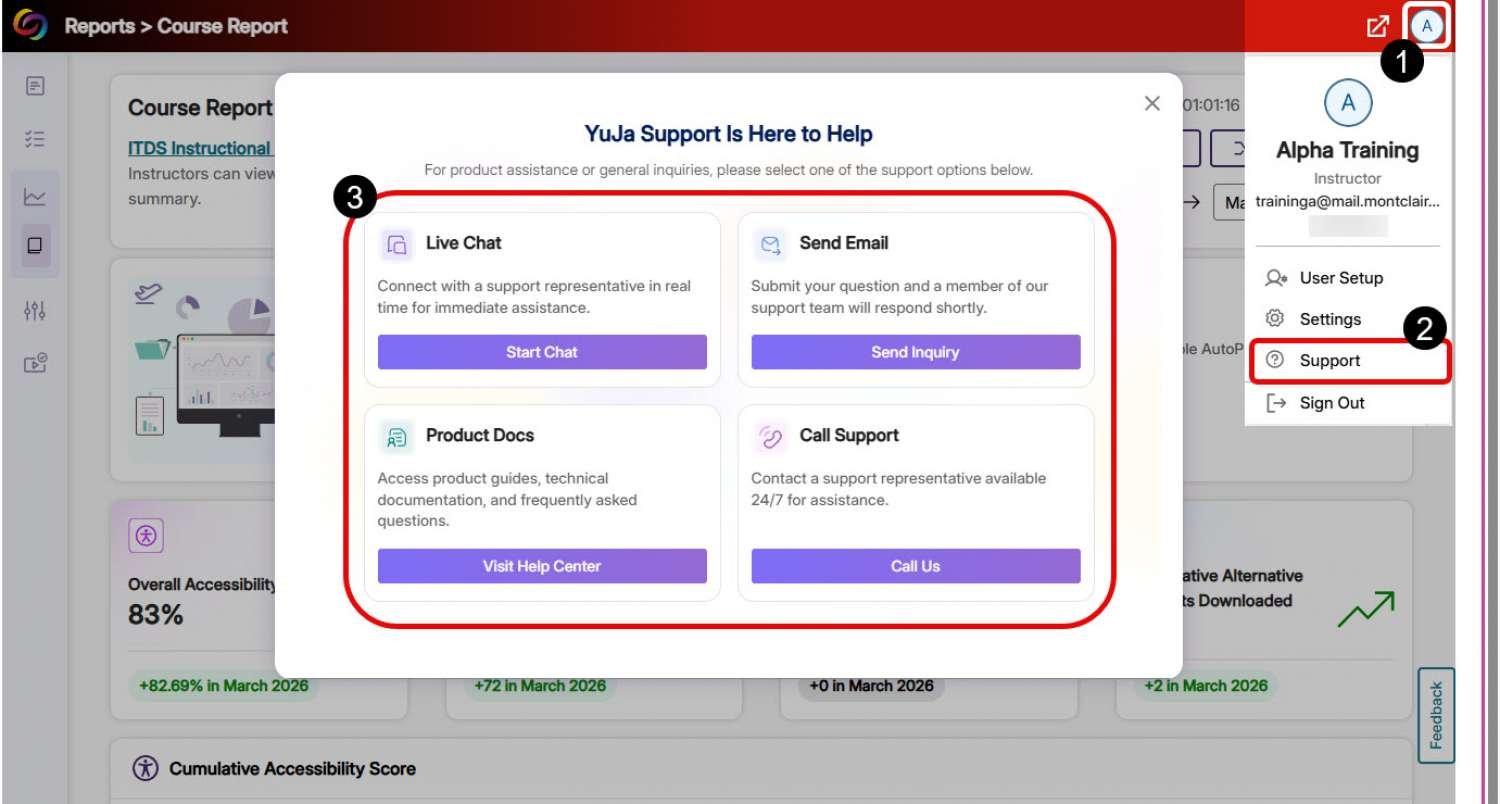
From the Panorama (Accessibility) menu in your course navigation,
- Press the Account Profile icon (circle containing your initials) in the upper right-hand corner of the YuJa Panorama Console.
- In the Account Profile menu, click Support then select the desired support option.
- A YuJa Support Is Here to Help window will open, click one of the four buttons to access the Live Chat, Email, Product Docs or Call options for help.