
Upload to Panopto
Option 1: Accessing Panopto through a Canvas course
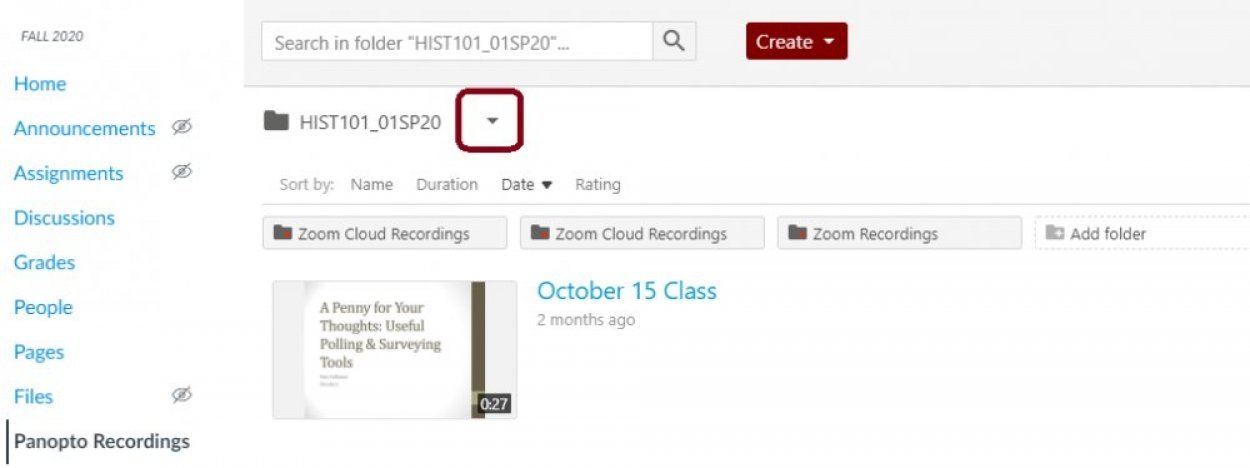
Click on "Panopto Recordings" in your Canvas course menu.
Note: If you do not have Panopto Recordings as an option please visit the Canvas Guide How do I manage Course Navigation links? for steps on how to enable it.
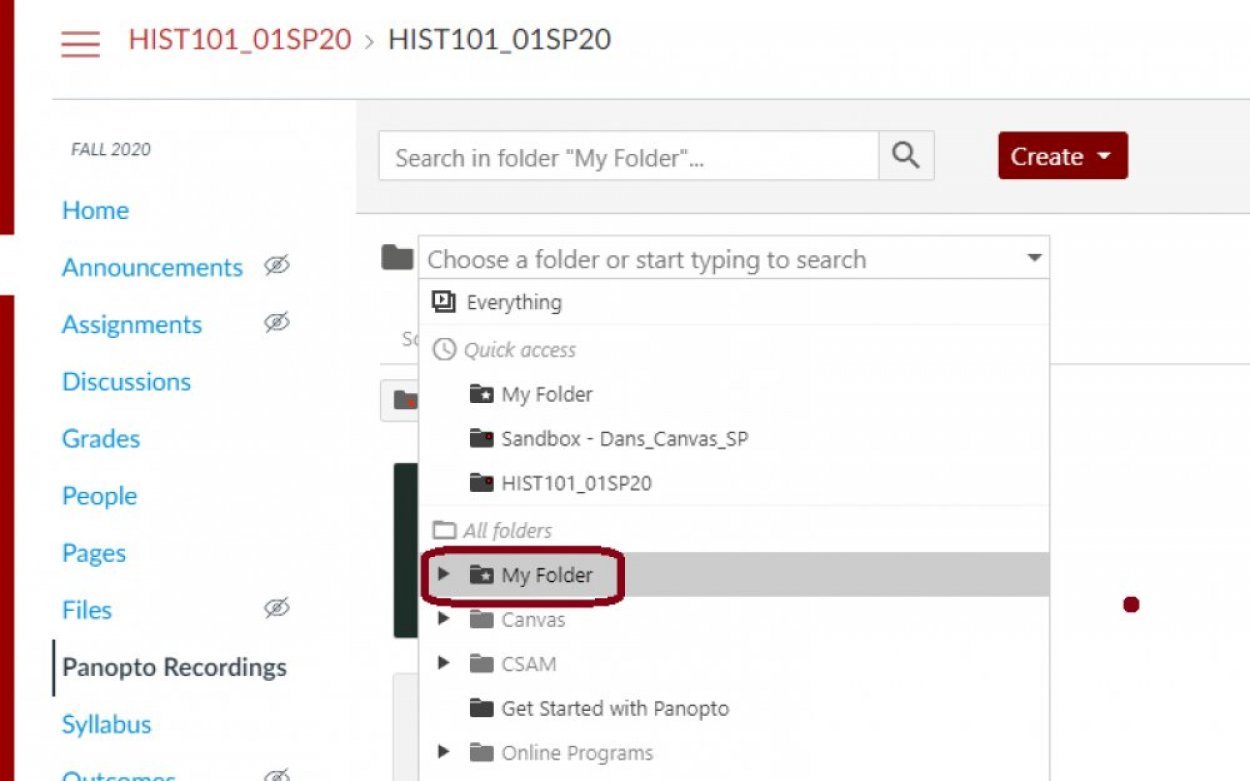
Navigate to your Panopto folder “My Folder” by clicking on the dropdown arrow next to your course folder and click on “My Folder”.
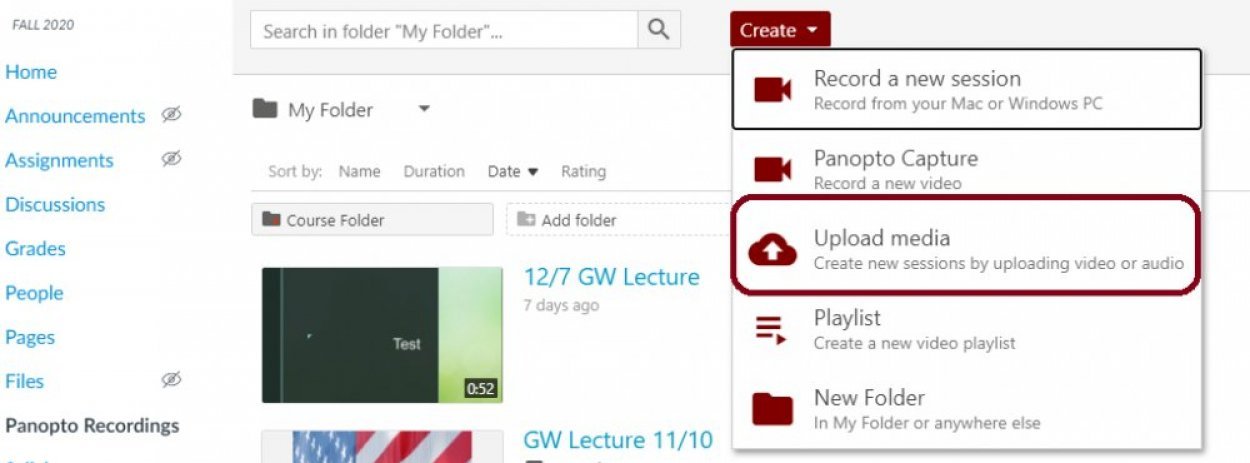
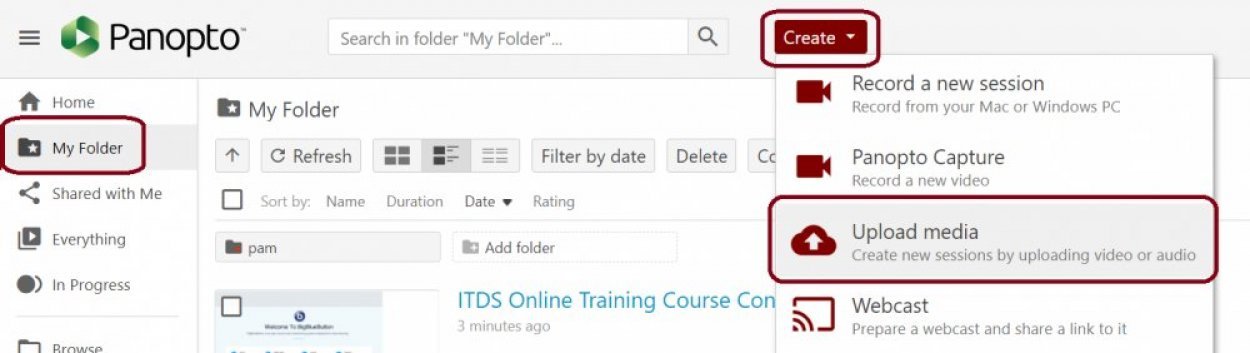
Click on "Create" and select "Upload Media."
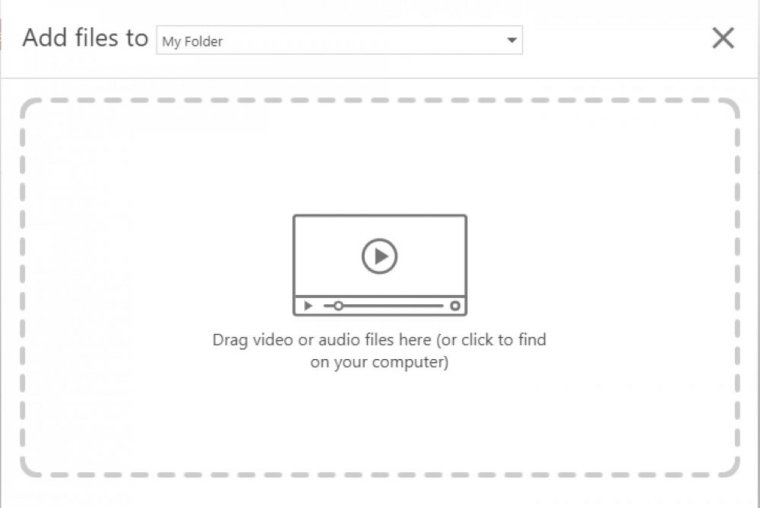
Click within the "Add files" frame to upload your video file.
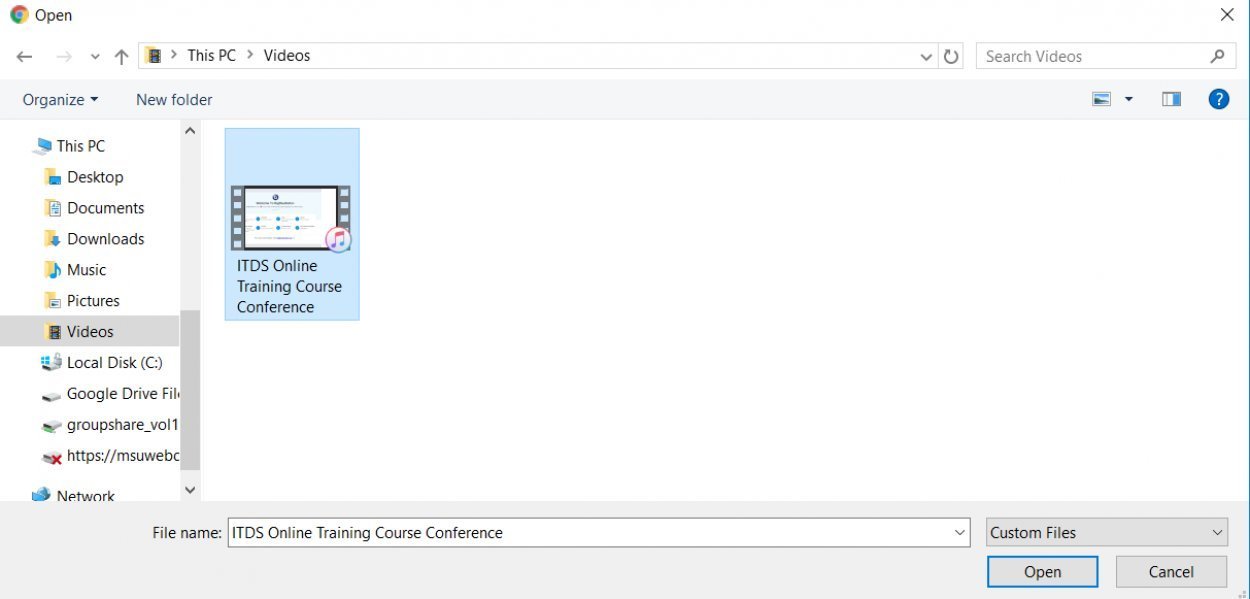
Navigate to your video, select the video file and click on "Open."
Once the video file finished processing it will be available in “My Folder”.
Option 2: Accessing Panopto through the Website
Navigate to Panopto via https://montclair.hosted.panopto.com/. If prompted to login, login with your MSU NetID and password.
Click on “My Folder” in the left side menu.
Click "Create" and select "Upload Media."
Click within the "Add files" frame to upload your video file.
Navigate to your video file, select the file and click on "Open."
Once the video file is finished processing it will be available in “My Folder”.