Montclair-branded Zoom Background Image (Instructions & Image Downloads)
Montclair provides approved Zoom background images that faculty, staff and campus partners can use for meetings, online classes, webinars and virtual events. Use approved Zoom backgrounds when representing Montclair in virtual settings, especially for meetings, presentations, interviews, webinars or events with external audiences.
Uploading Montclair Backgrounds
-
Step 1 – Download
Download the background images and save them to a folder on your computer.
-
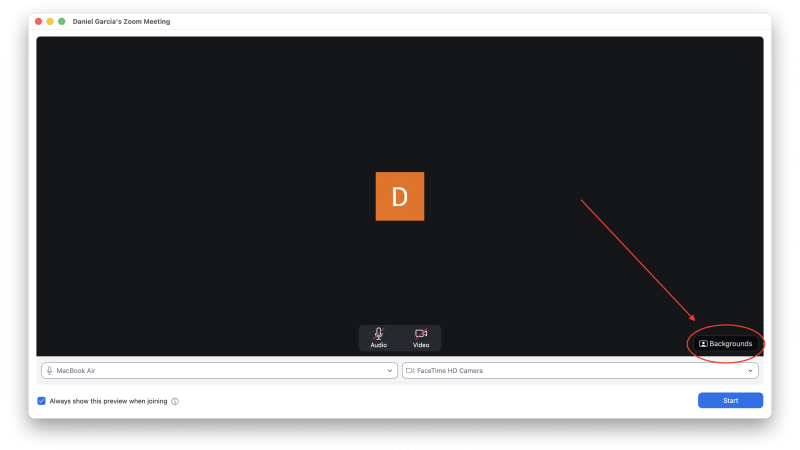
Step 2 – Choose Virtual Background
In Zoom, click on the menu button next to “Start Video.” Select Choose Virtual Background from the menu.
-
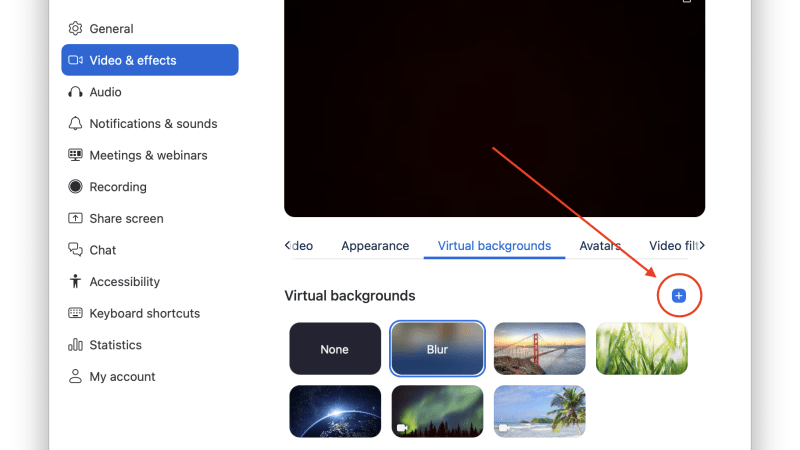
Step 3 – Add Image
Click on the plus (+) symbol and select add image.
-
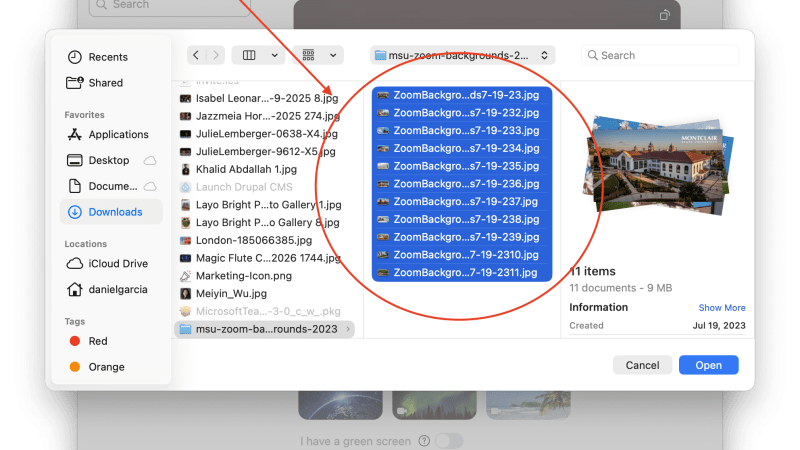
Step 4 – Uploading Images
Navigate to the folder where you saved the images in Step 1. Select all of the images and click Upload to add them to Zoom.
-
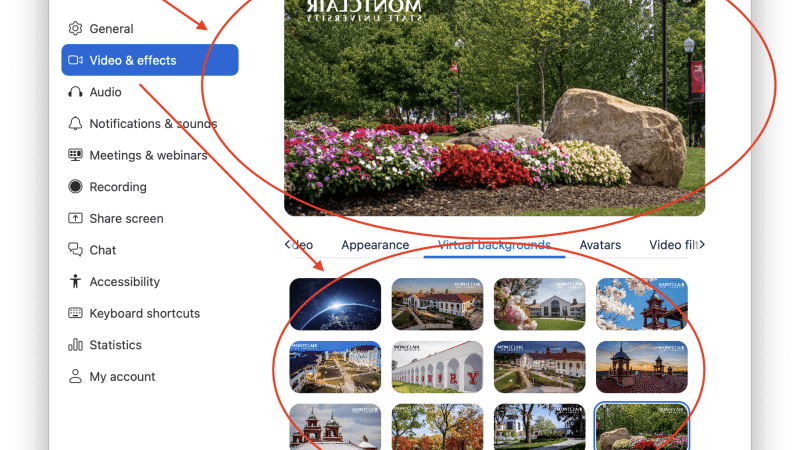
Step 5 – Select Background
Select a background from your uploaded images.
-
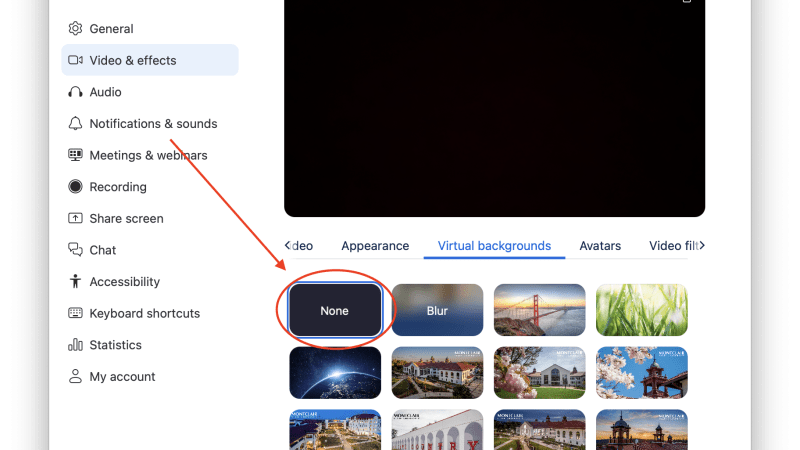
Step 6 – Remove Background
To remove the background, or to select another background, repeat Step 1 and Step 2 and select the None option.