
Cross-listing Course Sections
The process of combining the enrollment from two or more courses in Canvas is referred to as cross-listing. Before cross-listing, you need to determine which course will serve as the primary course and which course(s) will be cross-listed (moved to primary course).
If you cross-list your canvas courses, you will also need to update the Montclair Syllabus for your cross-listed courses.
*Note: If you are teaching more than one section of a course and plan to cross-list them in Canvas, please remember to do so before adding any content to your courses. Cross-listing after content has been added can result in loss of materials and student data. When cross-listing courses, the course information section of the Montclair Syllabus will display the details from the master course, and this portion cannot be edited. If you need to include course information for additional sections, you can add a new component to provide those details. Visit Updating the Montclair Syllabus for Cross-Listed Courses for additional information.
Cross-listing Course Sections in Canvas
Consider a common scenario: you are teaching two sections of the same course, BIOL101_01 and BIOL101_04. You would like to combine the enrollments into one course to make course management simpler. You decide that BIOL101_01 will serve as the primary course.
- Navigate to the course you wish to cross-list (in our example, BIOL101_04)
- Click on Settings in the course menu
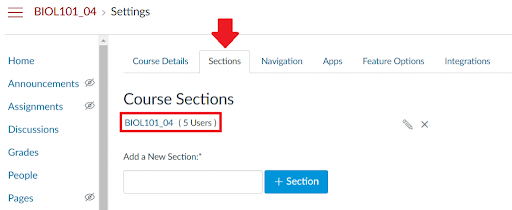
- Click on Sections
- Click the title of the course under Course Sections (BIOL101_04)
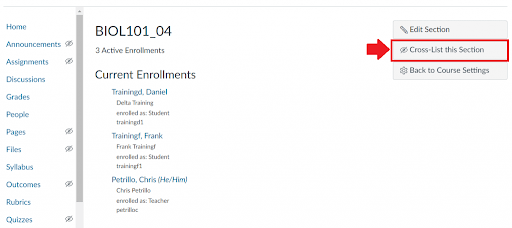
- On the right-hand side of the page, click the "Cross-List this Section" button.
- Type the primary course’s ID in the Search for Course field (BIOL101_01) and click on the course from the drop-down list. You can also use the course ID (the number that appears in the course URL after "/courses/").
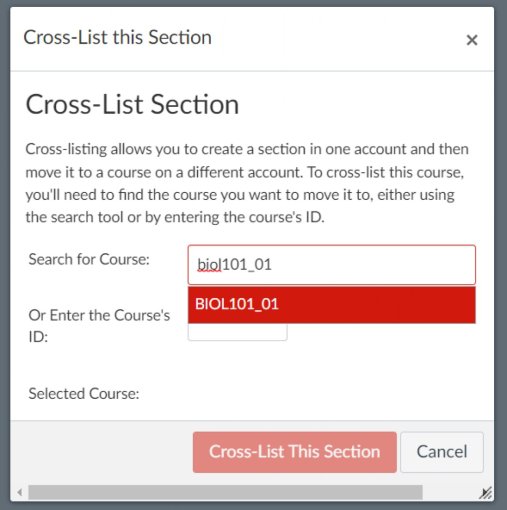
- Click Cross-List This Section.
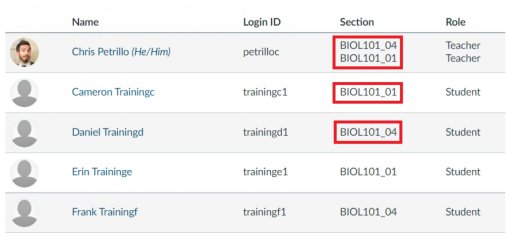
Once you click to cross-list the section, students from BIOL101_04 will now be in the BIOL101_01 Canvas course. You will no longer see BIOL101_04 in the Course drop-down list. However, it is still possible to view which section a student belongs to.
Click on People in the navigation bar to see a listing of students. Here you will be able to determine which section the students are in.
You are also able to grade each section separately.
- Click on Grades in the navigation bar
- Click on Showing All Sections and select which section you would like to work on
