Restoring Deleted Content
If you accidentally delete content from your Canvas course, you can bring back some deleted items by using the Restore Deleted Items option. Additionally, you are able to revert changes made on Pages using the Version History option. Both options are described below.
Restoring Deleted Items
The Restore Deleted Items option is located in your Course Settings.
- Click "Settings" in your Canvas course menu.
- Click "Restore Deleted Items."
- Click "Restore" next to the item you wish to bring restore.
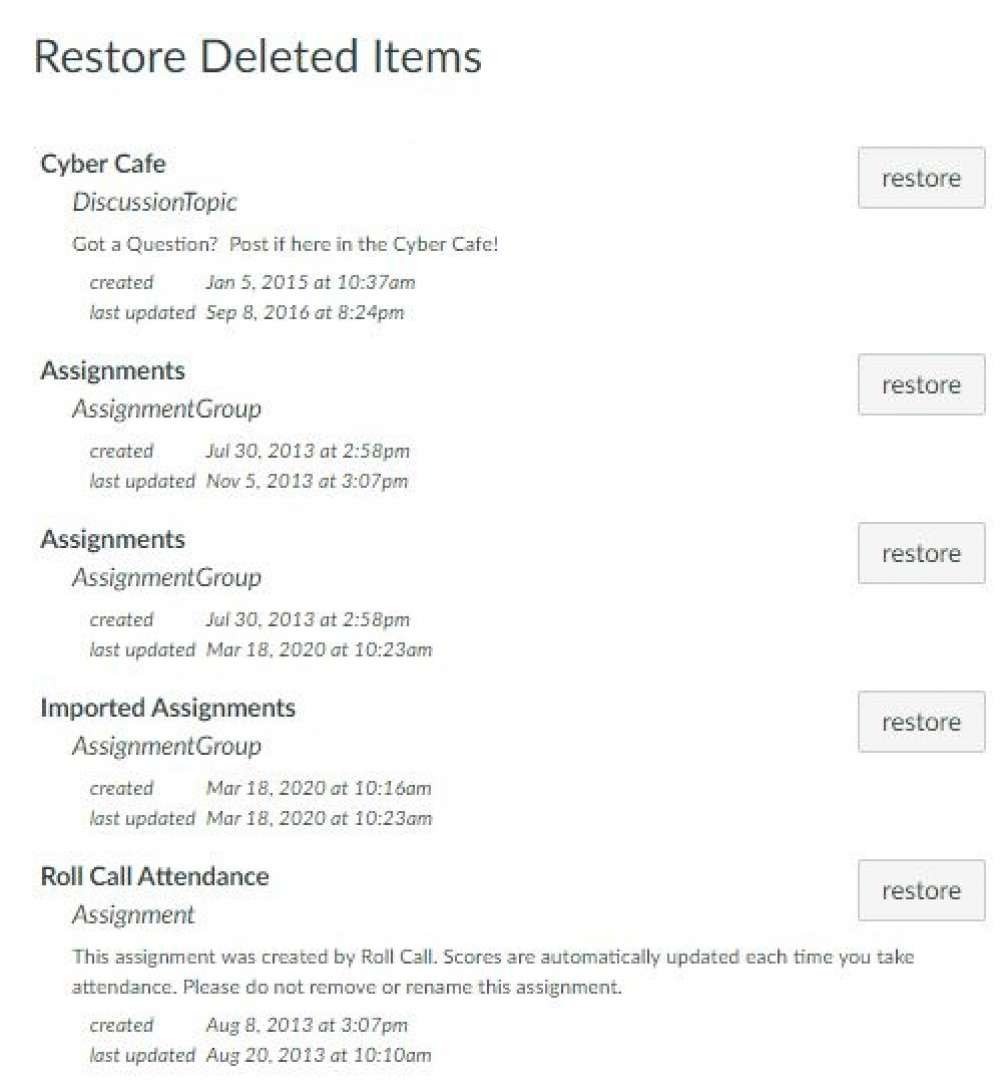
Note: There are limitations to this function; not all deleted items can be brought back. Keep in mind that some items may lose their associated data when they were deleted. You should make sure you confirm the results of any restores you perform.
Restoring a Previous Version of a Page
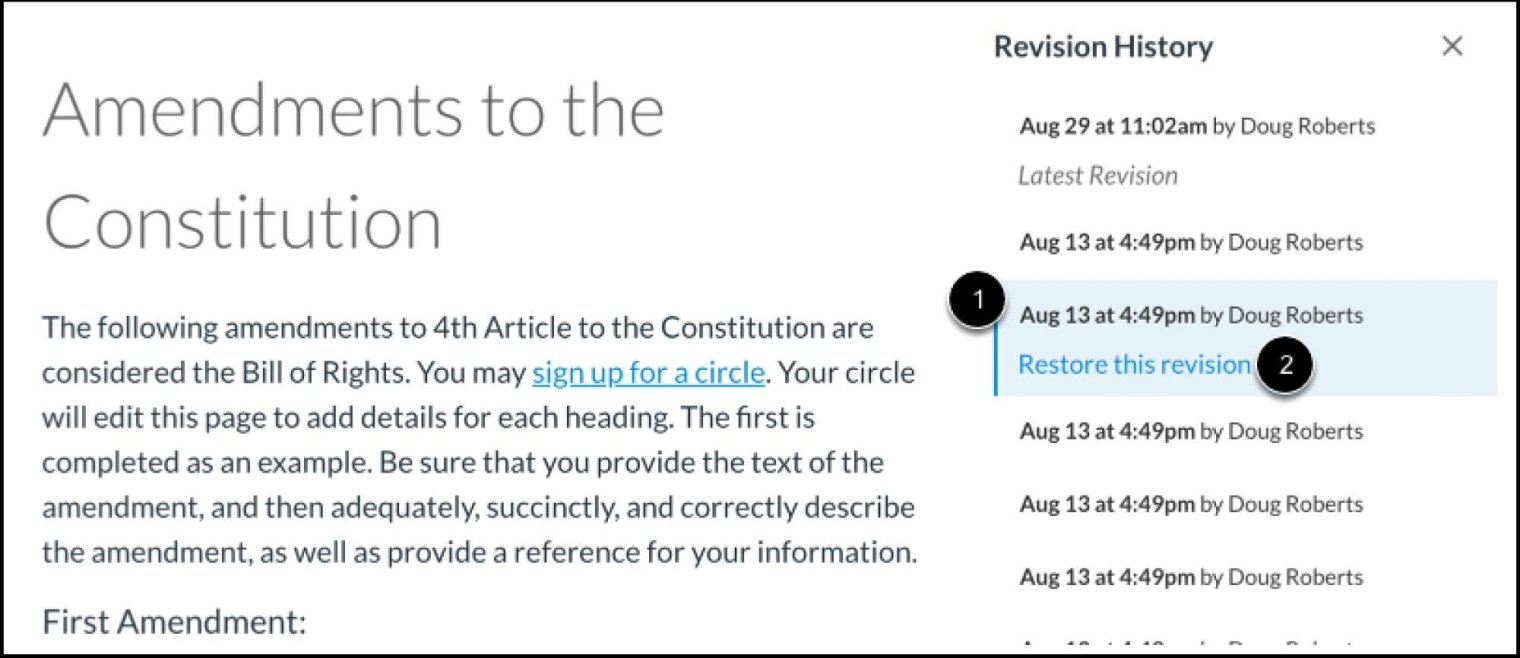
When you edit course pages, you can view the page history and see the date, time, and author of any changes made to the page. Page editors can also roll back the page content to a previous version of the page.
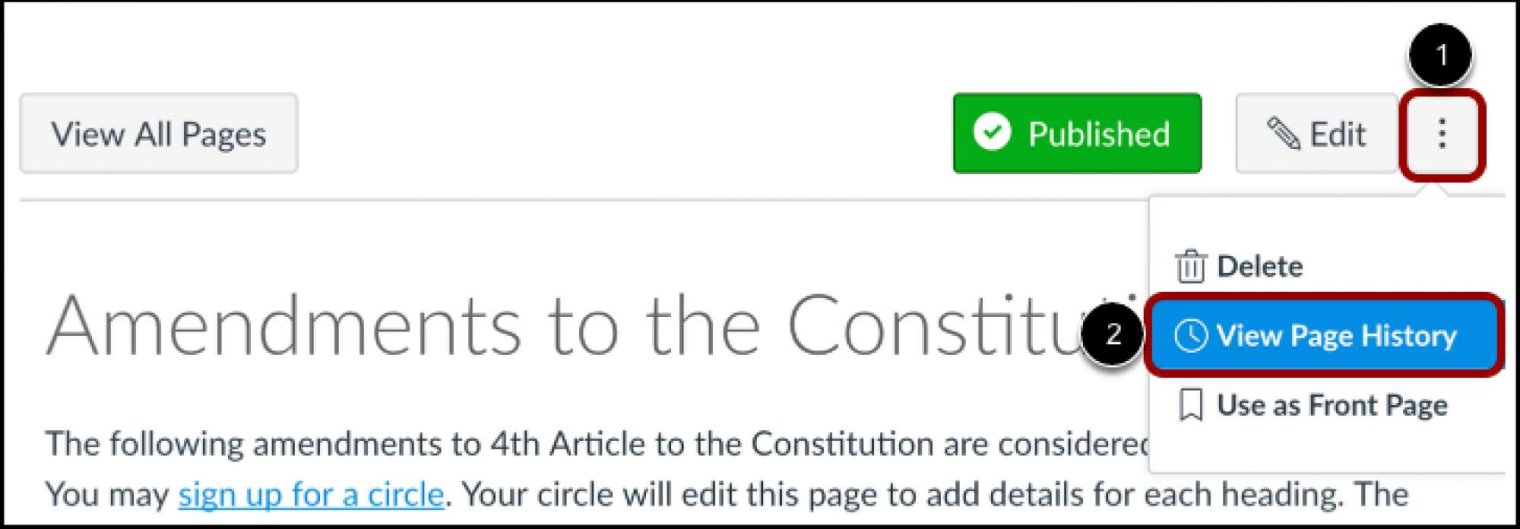
- Navigate to the Page you wish to revert changes on.
On the page, click the Options (3 dots) button [1] and then select the "View Page History option[2]."
A Revision History sidebar will appear, select the version you’d like to restore [1], and then click "Restore this revision [2].