Shared Doesn’t Mean Secure: Protect What Matters
We share information every day, but not everything should be shared with everyone. This article offers simple tips for keeping information secure, including choosing the right tools, managing access, and sharing only what is needed.
Sharing information is part of everyday life on campus. Whether you’re a faculty or staff member collaborating with colleagues, a student sharing a class assignment, or simply using Montclair systems to communicate, we rely on digital tools every day. But not all information should be shared in the same way. You should take a moment to consider what you are sharing, which tools are appropriate, and who can access it can help protect sensitive information both on campus and in your personal life.
Data Security & Privacy
Your data is valuable. Personal information, financial records, course materials, and university communications can all contain information that should be handled carefully.
Google Drive is Montclair’s secure data-sharing system for storing and sharing files. When using Google Drive it’s important to manage access appropriately and share information with people who need it.
Secure sharing is not just about using the right system. It is also about understanding what you are sharing, how the access is managed, and who should have access.
Disclaimer: Google Drive is intended for authorized storage and collaboration purposes only and should not be used to store, share, or distribute public health information.
My Drive vs. Shared Drive
Not all Google Drive storage works the same way. Understanding the difference between My Drive and Shared Drives can help prevent the loss of important information when someone leaves a role or their account is disabled.
The key difference between My Drive and Shared Drive is who the files belong to and what happens when people change roles or leave the university.
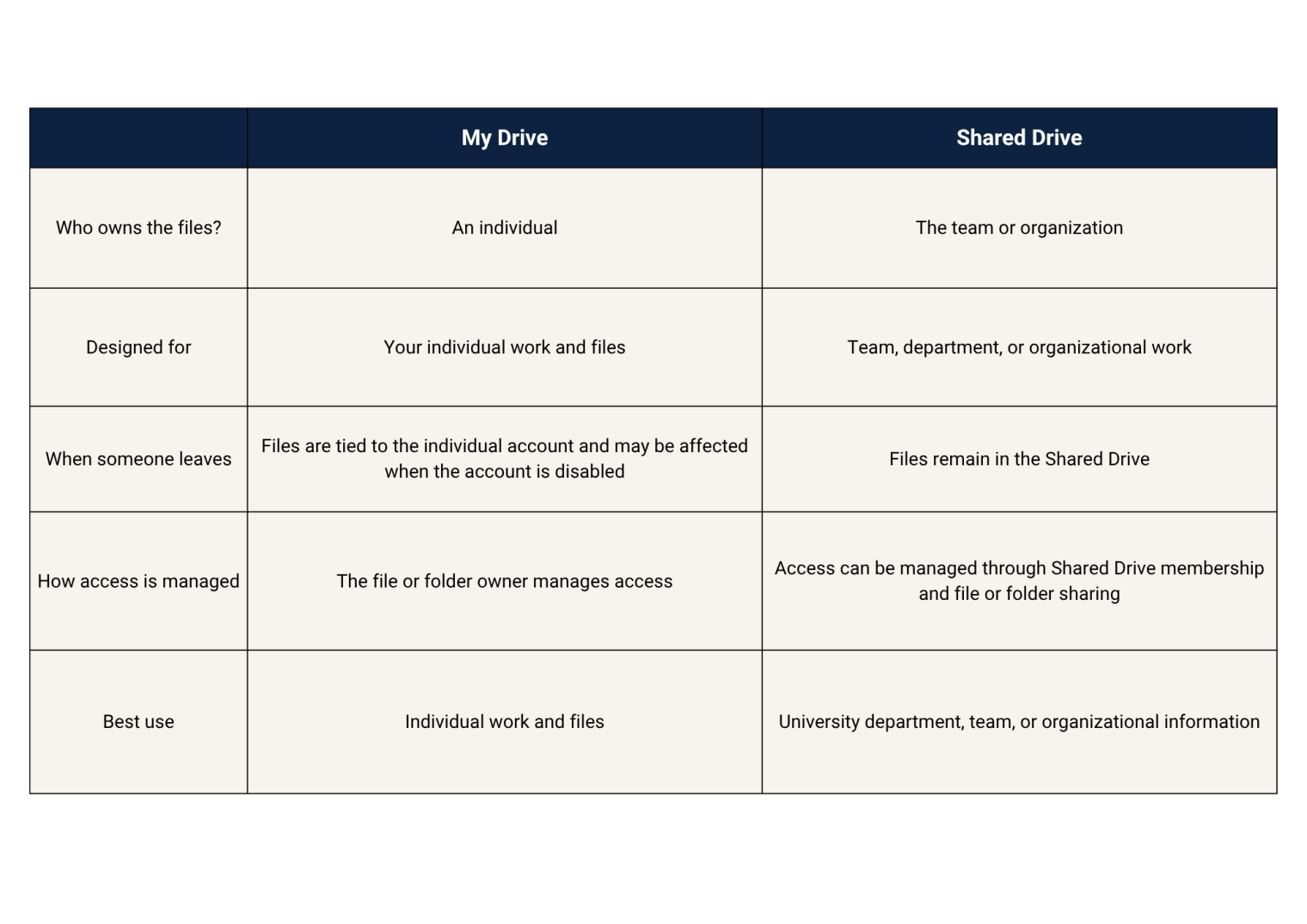
For department or team information, use an approved Shared Drive when appropriate. This helps keep important information available to the people who need it, even when roles change or an individual’s account is disabled.
Share Securely, Inside & Outside the University
Use Google Drive when you need to securely share university files, whether you are sharing information with individuals on campus or with an authorized external recipient.
When sharing internally
- Share files only with people who need them
- Use specific individuals or approved groups instead of “Anyone with the link” when possible.
- Give recipients the minimum level of access they need, such as View instead of Editor.
- Remove access when a class, project, or other need ends.
- Review existing permissions prior to adding new people.
When sharing externally
External sharing requires an extra level of care. Before sharing a file outside the university:
- Confirm the recipient’s email address.
- Confirm that the external sharing is appropriate for the information.
- Make sure the recipient actually needs the information.
- Give the recipient only the level of access they need.
- Remove external access when it is no longer needed.
Google Drive is our secure data-sharing system, but you are still responsible for choosing the right people and the right access settings.
Google Forms: Use the Right Tool for the Right Information
Google Forms are useful for registrations, feedback, scheduling, surveys, and other routine information. But it is not automatically the right tool for every type of data.
Before creating a Form, ask yourself:
- Do I really need to collect this information? Collect only what is necessary.
- Is the information sensitive? Do not collect things like Social Security numbers, MFA codes, passwords, financial account information, or other highly sensitive information via a Form unless the process has been approved.
- Who needs access to the responses? Make sure the response spreadsheet and any connected information are shared only with the people who need access.
Real-Life Tips You Can Use Anywhere
Good security habits apply whether you are working on campus, studying at home, or managing your personal accounts.
- Lock your screen. Stepping away from your computer? Lock it.
- Turn on MFA. If it’s available, always add multi-factor authentication (MFA) for additional protection.
- Think before clicking. Be cautious with unexpected file-sharing alerts, package notifications, account warning, and password reset messages.
- Use different passwords. Do not reuse your NetID password for personal accounts.
- Be careful on public Wi-Fi. Avoid accessing sensitive information on unsecured networks when possible.
- Keep your devices updated. Install operating system, browser, and application updates.
- Think before posting. Information shared online can be difficult to take back.
- Verify unusual requests. If someone unexpectedly requests sensitive information, confirm the request through an alternative, trusted method before responding.
- Clean up access. Remove old shared links, collaborators, and permissions you no longer need.
Protect What Matters
Secure sharing is not about avoiding collaboration. It is about using the right tool. Sharing only what is necessary, and giving access only to people who need it.
Before sharing, ask yourself:
- What am I sharing?
- Am I collecting more information than necessary?
- Who needs it?
- Are my access settings appropriate?
Want to Learn More?
Montclair State University | Data Security in Research
Google | What are shared drives?
Google | Tips to share your files
Google | Share files from Google Drive
- Published
- Type
- Topic