One Login. Any Device. Meet Your New Virtual Desktop.
Montclair State University has introduced a new Virtual Desktop Infrastructure (VDI) powered by Omnissa Horizon (formerly known as VMware Horizon). This platform allows students, faculty, and staff to securely access a full campus computer environment, complete with university software, systems, and tools, from any location with an internet connection. This eliminates the need to visit physical computer labs or offices.
What is VDI and How Do I Access It?
Virtual Desktop Infrastructure (VDI) gives our campus community access to a full campus computer at any time and anywhere. Instead of needing to be in a computer lab or office, VDI allows you to log into a virtual desktop with the same software, systems, and tools you’d use on campus.
At Montclair, VDI is powered by Omnissa Horizon (formerly VMware Horizon), a virtual desktop and software delivery platform that lets you access applications without installing them on your personal device.
What is Omnissa Horizon?
Omnissa Horizon is a virtual environment that provides access to campus desktop and applications through the internet. This means:
- No need to download or install software locally
- Access to Montclair applications from any device
- A secure, centralized desktop experience
A full list of available applications can be found in the Deployed Software section within the platform.
Why Use VDI?
VDI is useful for Montclair users who need:
- Access to Montclair software from off-campus
- A consistent desktop experience across devices
- A secure environment for sensitive data and work
- Flexibility to teach, learn, or work from anywhere
How to Access VDI (Omnissa Horizon)
Getting started is simple:
- Go to https://vdi.montclair.edu/
- Enter your NetID (example: smithj/smithj1) and password
- Complete Duo MFA request
- Once logged in, you’ll see the Omnissa Horizon dashboard
- Select “Apps” section to view available virtual desktops
- Click on corresponding desktop icon (Student/Faculty/Staff)
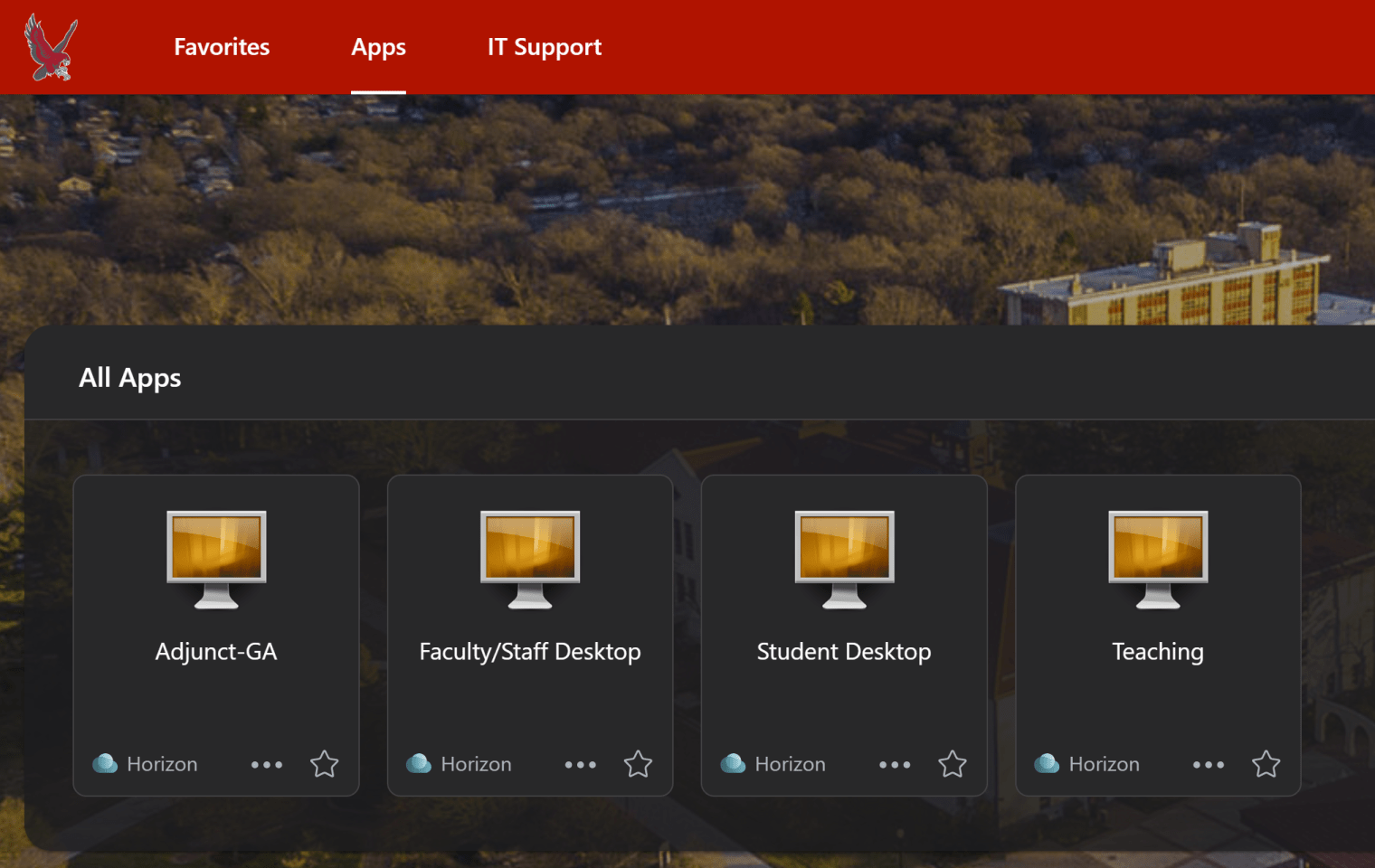
- Wait for desktop to launch and fully load
Once launched, your virtual desktop will function just like a campus computer.
Accessing VDI on Different Devices
Desktop or Laptop
You can access VDI through your web browser.
Best for:
- Teaching, administrative work, and coursework
- Running specialized or high-performance software
- Multitasking with multiple applications
Mobile Devices (Phone or Tablet)
VDI is also accessible on mobile devices using a compatible app or browser.
What to expect:
- Touch-based navigation (tap, zoom, scroll)
- Best for quick access or reviewing files
- Not ideal for long sessions or complex workflows
Tips for a Smooth Experience
- Use a strong and stable internet connection
- Keep your Duo Mobile app updated
- Use a modern browser (Chrome, Edge, or Safari)
- Log out when finished, especially on shared devices
Need Help?
If you experience issues accessing VDI (Omnissa Horizon), contact the IT Service Desk.
- Published