
Final Grade Submission FAQ's
Per the Office of the Registrar, final grades are generally due within five (5) business days of the final class meeting. Instructors must enter final grades via Banner Self-Service in NEST. Instructions are available in the FAQ section below.
Every student listed on a grade roster is officially enrolled and must receive a final grade based on academic performance or documented non-attendance to satisfy federal compliance standards.
Failure to submit grades by the deadline will result in temporary NR (Not Reported) grades being assigned. NR grades are not automatically converted to F grades and must later be corrected through the Grade Change process.
Fall 2026 Final Grade Submission Schedule
| Session | Start Date | End Date | Web Grading Opens (9:00 AM) | Final Grade Deadline (11:59 PM) | Grades Visible for Students in NEST |
|---|---|---|---|---|---|
| Session B (1st 7-Week Term) | Fri, 8/28/26 | Fri, 10/16/26 | Thurs, 10/8/26 | Fri, 10/23/26 | Sat, 10/24/26 |
| Session C (2nd 7-Week Term) | Mon, 10/26/26 | Wed, 12/16/26 | Thurs, 12/7/26 | Wed, 12/23/26 | Thurs, 12/24/26 |
| Session A (14-Week Term) | Fri, 8/28/26 | Wed, 12/16/26 | Mon, 12/7/26 | Wed, 12/23/26 | Thurs, 12/24/26 |
Critical Grading Guidelines & Policy Updates
- Mandatory Grading for All Students: Every student on your official roster must be assigned a final grade based on academic performance or participation. Students are responsible for officially dropping or withdrawing from courses. Students seeking late withdrawal consideration must use established university appeal processes.
- Important NR (Not Reported) Policy Change: Grades not submitted by the above deadlines will automatically post as a temporary "NR" grade. NR grades will no longer be administratively converted to an "F." Instructors must resolve all NR grades by submitting online grade change requests.
- Failing Grades (F) Requirements:
- Student Never Attended (Non-Attendance): Assign an 'F' and enter the first class meeting date as the last date of attendance.
- Student Stopped Attending (Stop-Outs): Assign an 'F' and enter the student's actual last date of attendance.
Incomplete Grades, Verification & Grade Changes
- Incomplete Grades (IN): Post the "IN" grade on the roster before the deadline and complete the Incomplete Grade Contract Form.
- Confirming Submission: After submitting roster grades, scroll to the bottom of the roster and select 'Summary Class List' to verify all grades have successfully posted.
- Post-Deadline Grade Changes: After the deadline passes, you can update grades only through the online Grade Change Request form in Self Service Banner (Faculty/Advisors page). Requests require approval from the Department Chair and the respective Dean's Office before final posting to the student record.
Contact the Registrar for additional assistance
Frequently Asked Questions
How to Find a Course Session
- Access "Banner Self-Service"
- Click on “Faculty/Advisor Services” then select “Faculty Detail Schedule”
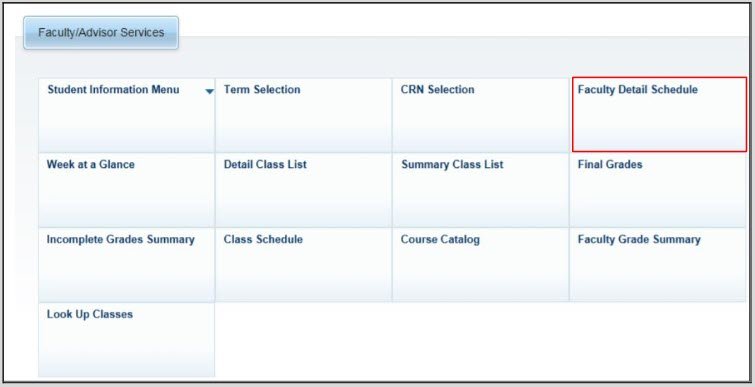
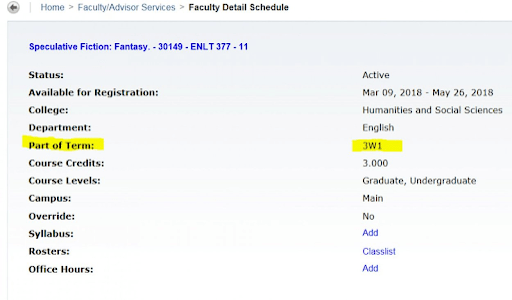
- Select a course and then you will be shown the details for the Session as shown below:
Error Messages
Why Am I Getting an Error When Attempting to Access SSB?
You may need to clear your cookies and cache:
To repair the SSB access error you must clear your cookies and cache on the browser of your choosing.
Here Are Instructions for Each Browser:
Any further issues, please call the IT Service Desk at 973-655-7971 Option #1 or email itservicedesk@montclair.edu. They are also available for chat from 10am – 4pm, Monday through Friday.
Why Do I Get Error Messages When Attempting to Log in on Nest?
For the best user experience with NEST, use Chrome, Internet Explorer, Firefox, or Safari. Microsoft Edge is not currently supported.
Why Isn’t my NetID and Password Working?
Your password must be changed in NEST every 6 months. If you have not logged in recently, you may need to reset your password.
For additional assistance with any other NetID issues, contact the IT Service Desk at 973-655-7971 or itservicedesk@mail.montclair.edu.
Submitting Final Grades
- Log into NEST.
- Select Banner Self-Service from Quick Links

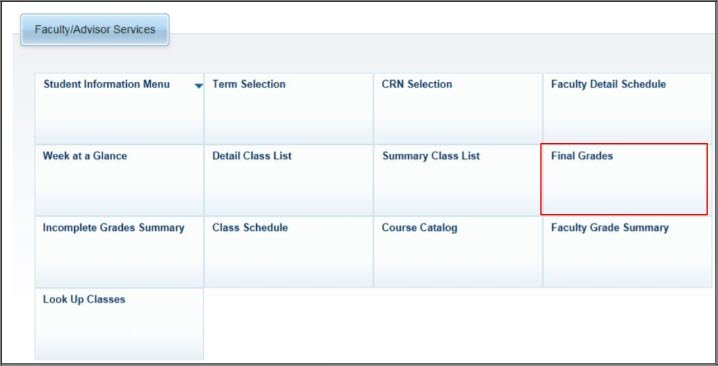
- Click on “Faculty/Advisor Services” then select “Final Grades” to select the course you are going to grade.
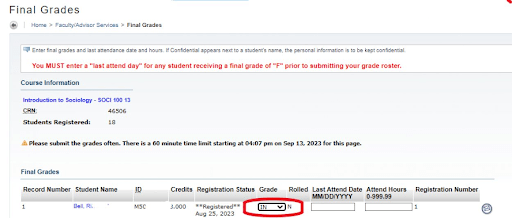
- Enter the grades under the “Grade” column. It is not necessary to enter “attend hours”. Leave it blank.
NOTE: If you see “confidential” next to a person’s name, that indicates a request is in place for a FERPA block, preventing release of even “Directory” information. Review the FERPA guidelines for faculty.
- Under the Grade column, select the grade you want to award and move to the next student. When you are done with this roster, click on SUBMIT. Grades will not enter the database until you do so. Banner Self-Service pages time out after 60 minutes. Submit your work frequently to prevent losing unsaved grade entries.
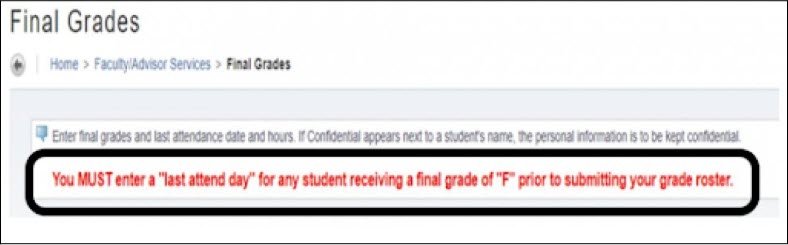
NOTE: Beginning in fall 2016, per the Provost’s office, every F grade requires a Last Date of Attendance. Banner will not allow submission of an F without this information. The date should reflect either:
- Failed Academic Performance: Assign an F grade and enter the student's last day in class
- Stopped Attending (Stop-Outs): Assign an F grade and enter the last date academic work was received or the last date of attendance.
- Never Attended: Assign an F grade and use the first day the class met.
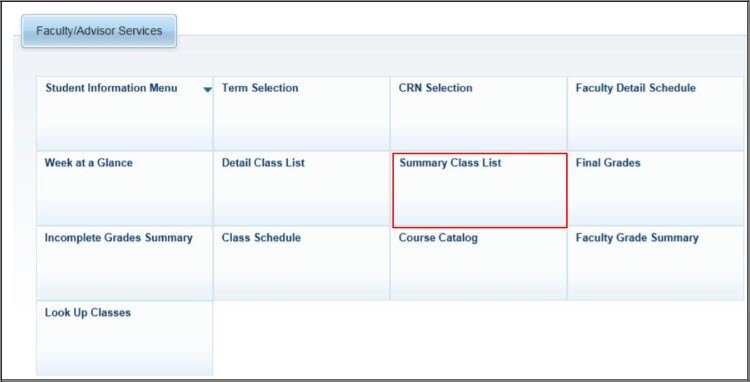
- When you have completed entering the grades and have hit the submit button, you can verify submission of grades on the Summary Class List from the Faculty/ Advisor Services menu.
Submitting an Incomplete
Submission of Incomplete Grades is a TWO-STEP process:
- Post the “IN” Grade on your Main Class Roster. Only click submit once all grades have been entered.
- Another confirmation screen, “Incomplete Final Grades,” will appear. Review the screen to ensure all students you intend to post an “IN” grade for the roster are on this list, and submit the “IN” grades that appear by clicking the submit button to post the “IN” grades to the class roster.
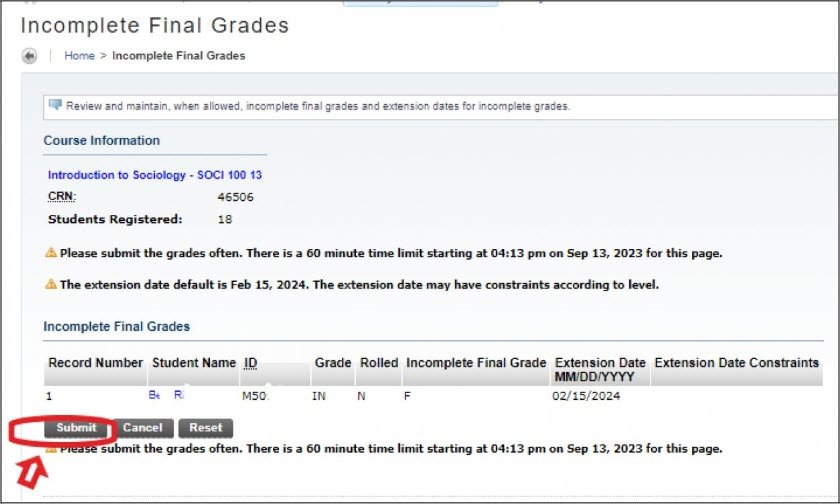
Note: You must post the IN grade on the grade roster and click submit. The first main roster screen lists all the Incompletes you have assigned for that course, and you must also click submit on the second confirmation screen to have the grades post successfully to the roster.
Submit the online Incomplete Grade Contract or the Incomplete Grade Extension Request online form links. Forms are found on the Red Hawk Central Forms page under Office of the Registrar.
What Grades to Assign
Each grade roster is coded with a grade mode that allows specific grades to be assigned for each student, i.e., A’ through F letter grades for normally graded courses, or P, F grades for Pass/Fail courses. You may only select grades from the drop down menu of valid grades that appear for each student on the class grade roster. You may not assign a new grade if a final grade of ‘WD ’ already appears for a student. The WD grade indicates that the student has been officially withdrawn from the course.
Students enrolled in courses on an auditing basis will have final grades of AU- “Audit” posted to the roster. Students coded as Audit should have a letter grade posted for attendance only.
If a student has never attended class or has only attended a few times, a final grade of F should be assigned.
Please contact the Office of the Registrar for further assistance if you do not see the appropriate choice of final grades from which to select, or if you believe there is an error or some other issue with an already assigned grade.
Attend Hours
An “Attend Hours” column appears on the grading page. This is not a required submission field and should be left blank by instructors.
Montclair Grading System
Montclair State University uses a letter grade system.
If you do not see the grade selection options listed, please contact the Office of the Registrar.
Note: There is no grade of ‘A+’, and graduate level students may not be assigned ‘D’ grades at Montclair.
How to Assign an F Grade
NOTE: Beginning in fall 2016, per the Provost’s office, all grades of “F” must be accompanied by the last date of attendance. (Last date of attendance is defined as the last date in class, or the last date you received work. You will not be able to award an “F” without also entering this date).
Grade Verification
Before the Grade Submission Deadline:
From Faculty/Advisor Services in Banner Self-Service, you can select “Summary Class List”. All grades you successfully submit will appear in the “Summary Class List” immediately after you submit all grades for your rosters, but before the Grade Submission Deadline. If no grades appear here, you were not successful and must return to the roster and submit again.
Faculty Grades Summary
After the Grade Submission Deadline has passed:
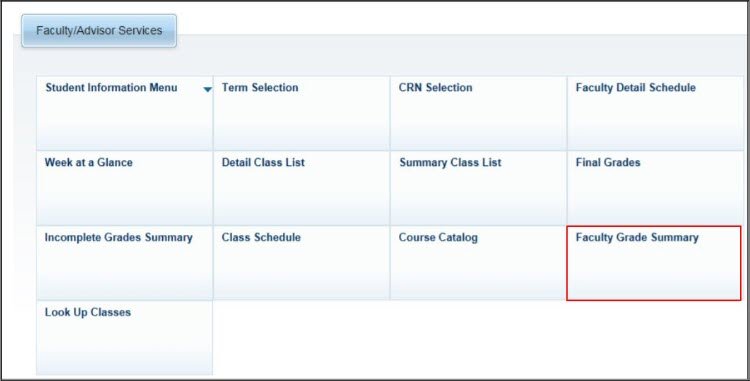
From Faculty/Advisor Services in Banner Self-Service, you can select "Faculty Grade Summary”. All grades you successfully submitted will appear in the “Faculty Grade Summary” only after the Grade Submission Deadline.
Grade Change Requests
Once a grading deadline has passed, any rosters with unsubmitted grades are immediately administratively posted with NR (Not Recorded) grades. A grade change will need to be submitted for each student to update the NR grade. The online Grade Change Request form button is found on the Faculty Advisors page in Self-Service Banner.
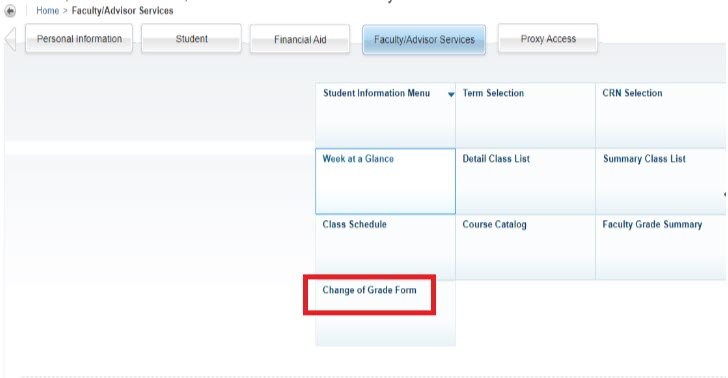
Please note that both the department chair and the dean’s office designee must approve grade change requests before they are automatically uploaded to student records.
Specific instructions on how to submit an online Grade Change Request.