Login and Password Management (macOs)
Logging In
For a Montclair State University issued computer configured with FileVault, the initial login screen will either have an icon with your name, or two lines allowing you to enter yout NetID and password.
Note: If the computer is not for lab use and you see the login screen below after restarting, please contact the IT service Desk or your local technology team.
If you choose to log out from the Apple menu you will see the login screen asking for your email address, then your password on a screen similar to that shown next.
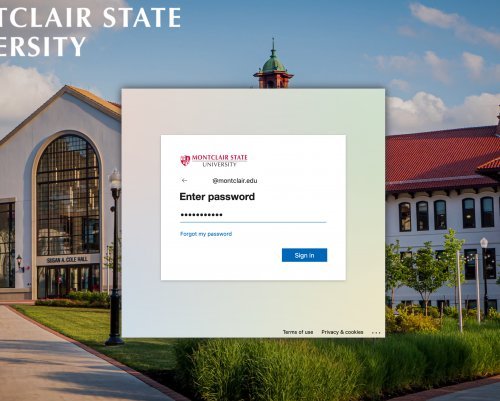
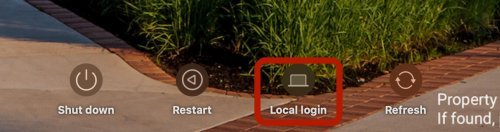
If you do not have an internet connection, select Local Login at the bottom of the screen and login with your NetID and password.
Password Changes
1.When it is time to change your password (see the Password Management Policy), select the Jamf Connect icon in your menu bar (near the time)
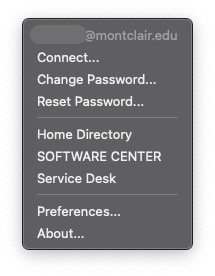
2. Choose Change Password if you know your current password. This will open a window allowing you to change your password once you log in.
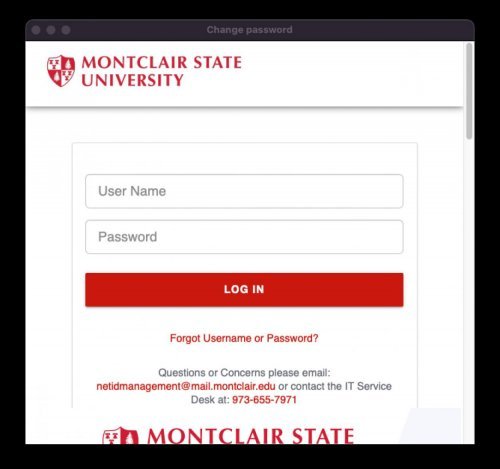
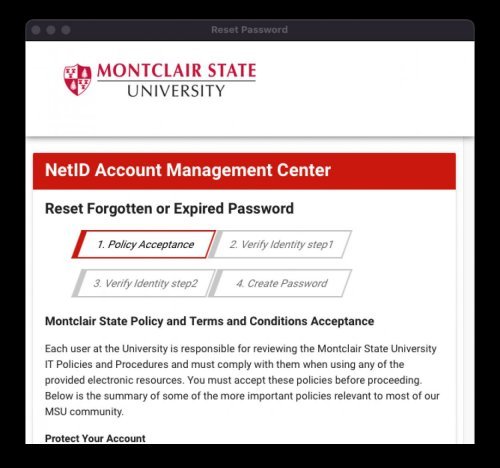
3.Choose Reset Password if you do not know your password or it is expired. This will open a window allowing you to reset your password.
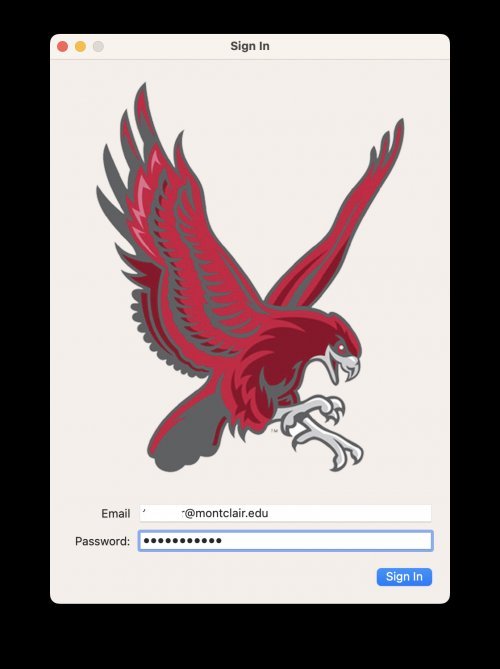
4.Once your password is changed, you will see a window with a Red Hawk aksing for your email address and password. Enter your NetID@montclair.edu email and password. Select Sign In. This will sync your computer password (local login and keychain) to your NetID using Jamf Conenct.