[Phish Alert] Beware of Google Calendar Phishing Invites
This article warns users about a rise in Google Calendar phishing scams involving fake invitations related to PayPal, cryptocurrency, invoices, or overdue payments.
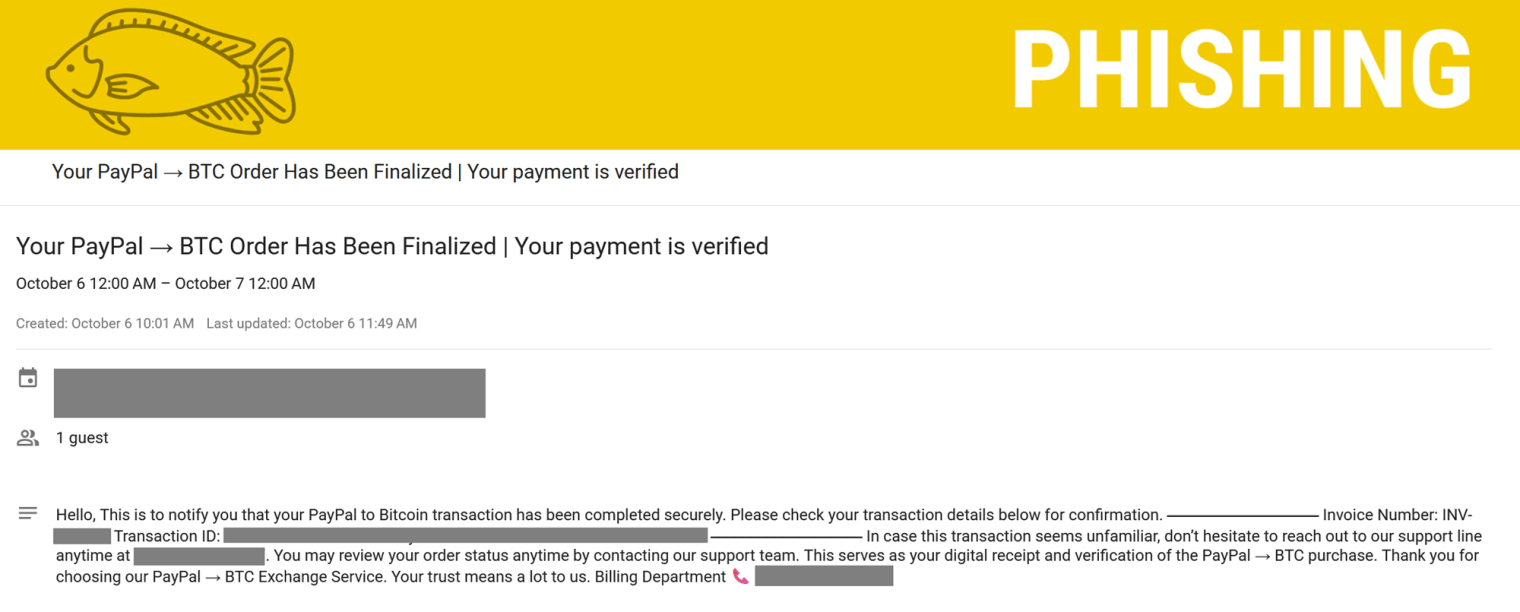
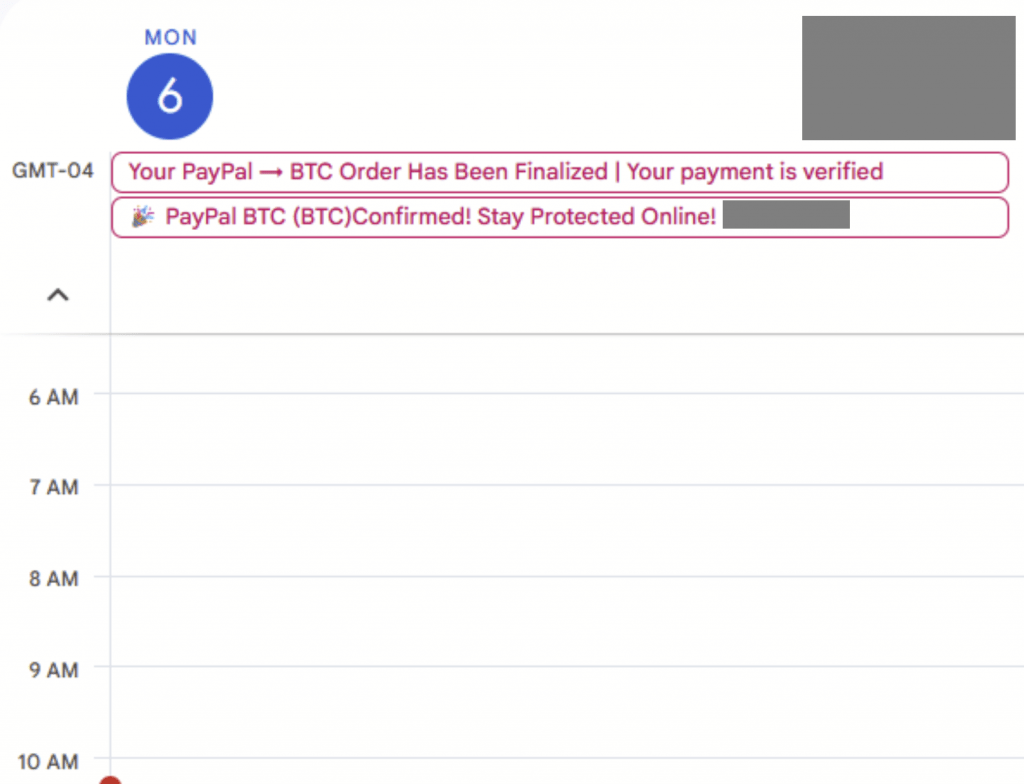
We’ve recently observed a wave of Google Calendar phishing attacks targeting our campus community. Attackers are sending fake calendar invitations that reference PayPal, Bitcoin, cryptocurrency, invoices, or overdue payments. These invites often look legitimate and may even include links that lead to malicious websites.
Even if you don’t click anything, these invitations can clutter your calendar and put your personal information at risk. It’s important to know how to manage these invites and protect yourself.
How to Protect Your Google Calendar
1. Change Your Calendar Settings
To prevent unknown invites from automatically appearing on your calendar:
- Open Google Calendar on a computer.
- Click the gear icon → Settings → Event settings.
- Find “Automatically add invitations” under “Add invitation to my calendar” and select: No, only show invitations to which I have responded
This ensures that spam invitations won’t automatically appear on your calendar.
Disclaimer: By selecting “No, only show invitations to which I have responded,” new calendar invitations will not appear automatically on your calendar. You will only see events after you have accepted or responded to the invitation. This may cause you to miss or overlook pending invitations if you do not review them manually in your inbox. Be sure to check your email or invitation list regularly to avoid missing important events.
2. Adjust Notifications
- In Settings → Event settings → Notifications, you can turn off notifications for external invites.
- This helps reduce the chance of accidentally interacting with suspicious events.
Disclaimer: If you turn off notifications for external invites, you will not receive alerts when someone outside your organization sends you a calendar invitation. You may miss new meeting requests unless you check your calendar or email regularly.
3. How to Identify Suspicious Invites
Watch for calendar events that:
- Come from unknown email addresses.
- Mention cryptocurrency, PayPal, invoices, or overdue payments.
- Include links or attachments that ask for credentials.
- Include a phone number in the event description.
Why attackers add phone numbers:
Phishers often include a phone number to make the invite look more legitimate and urgent. They want you to call the number for “billing” or “verification,” but this is a social engineering tactic designed to gain access to your accounts. Do not call these numbers or reply to the sender. Legitimate organizations will not request sensitive information through calendar invites.
Important: If you were not expecting the invite, do not interact with it in any way—ignore, delete, and report.
4. Examples of Suspicious Event Subjects
- “Invoice #XXXX – Payment Overdue”
- “PayPal Notification – Action Required”
- “BTC Payment Received – Confirm Your Account”
- “Crypto Wallet Alert – Verify Your Account”
- “Unpaid Invoice – Urgent Payment Required”
- “Bitcoin Transaction Pending”
- “Payment Request from [Random Name]”
- “Refund Confirmation – Action Needed”
- “Wire Transfer Details – Open Immediately”
- “Urgent: Account Verification Required”
5. Steps to Take if You Receive a Phishing Invite
- Do not click on any links or respond “Yes/No/Maybe.”
- Do not contact the sender or call the phone number listed.
- Delete the event from your calendar.
- Report it to Google:
- Open the event → Click More → Report as spam.
- This enables Google’s machine learning to analyze data and improve responses in future scenarios.
- Forward a copy to phishfiles@montclair.edu.
6. Stay Vigilant
- Never share your Google credentials or authentication codes.
- If you weren’t expecting the invite, do not interact.
- Verify directly with the sender through official channels if you’re unsure (never through the calendar invite).
- Share this information with classmates, colleagues, or team members to help protect the entire campus community.
By following these steps, you can reduce exposure to calendar-based phishing attacks and keep your personal information safe.
Additional Notes
- Remember: Information Technology will never text you. We will also never request your password or Duo codes, ever.
- Information Technology will not ask you to verify accounts or submit passwords through unofficial forms or unexpected email links.
- Do you think you’ve fallen for a scam? Did you share personal information? Downloaded malicious content? Please contact the IT Service Desk.
- Use the Knowbe4 Phish Alert Button (PAB) to report malicious emails directly to the Information Security team for review. If you are not using the Gmail client please forward the email to phishfiles@montclair.edu.
Always use the “hover over” technique to check web links before clicking! For more security tips please visit the Phish Files!
- Published